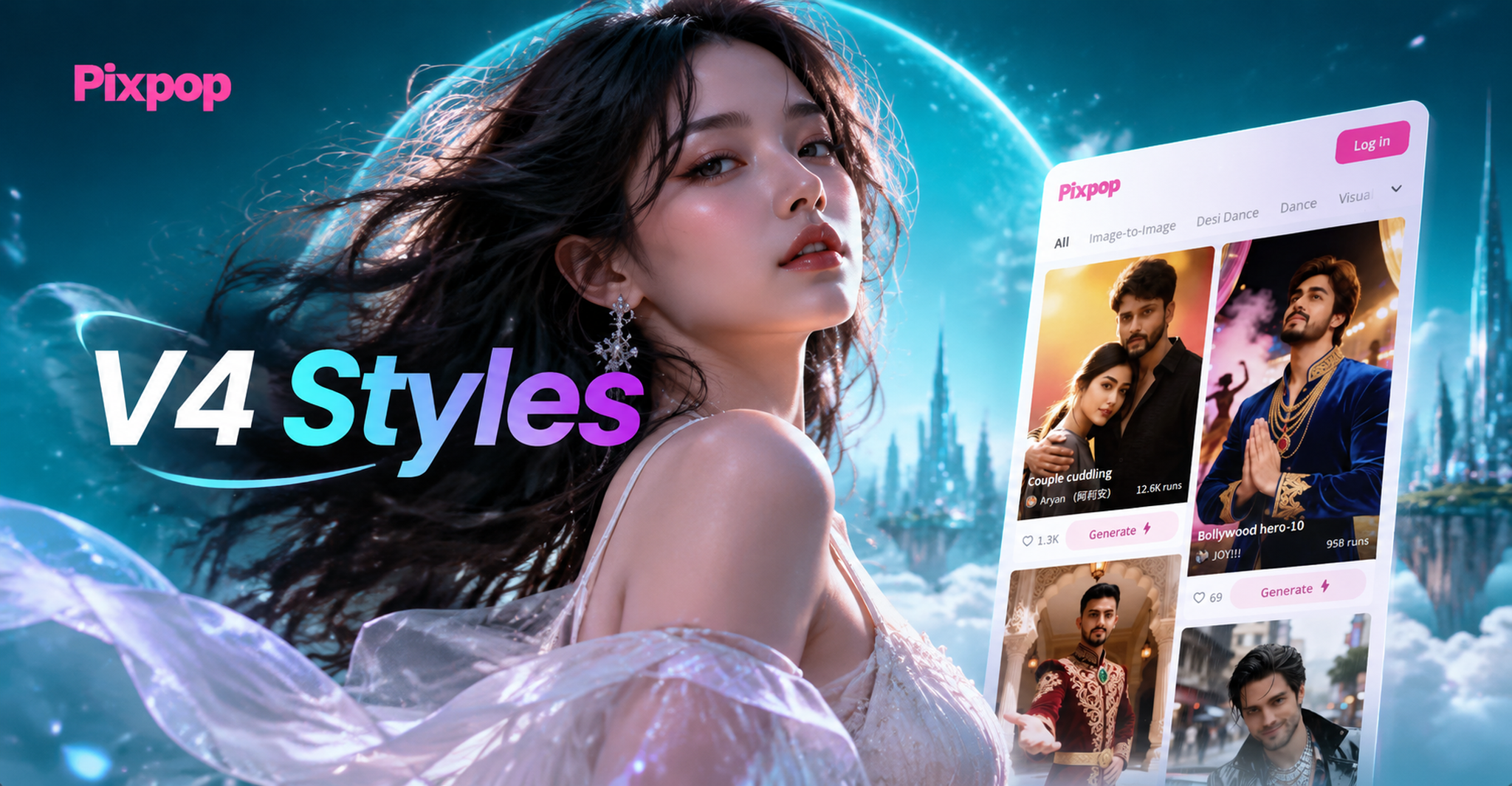
If you have been looking for one practical reference to make sense of the latest AI visual presets, this V4 styles field guide is built for you. V4 styles sit at the top of the current style preset hierarchy, combining better prompt adherence, smoother video motion, and more consistent subject rendering than earlier filters. Whether you want a photorealistic portrait, a cinematic movie still, a clean anime frame, or a playful clay render, understanding V4 styles will help you get the result faster and with fewer failed attempts.
What Are V4 Styles?
V4 styles are the newest generation of curated style presets used in AI image and video generation. They act as complete visual treatments that control color, lighting, texture, composition, and character rendering in a single pass. Inside the pixpop app, V4 styles appear as selectable templates that you can apply to a text prompt or an uploaded photo. The goal is simple: choose a style, describe or select your subject, and generate a polished result without needing advanced prompt engineering.
What separates V4 styles from older style filters is their level of control. Earlier presets often shifted colors or added a texture overlay. V4 presets reinterpret the whole scene, adjusting depth, skin texture, background consistency, and even the way light falls across different materials. This makes them especially useful for image-to-image workflows where you want to change the look without losing the original subject's identity.
How V4 Styles Differ From Previous Style Filters
- Subject consistency: Faces, clothing, and object shapes stay stable across multiple generated frames and video clips.
- Stronger prompt handling: Text-to-image generation follows scene details, camera angles, and lighting cues more accurately.
- Refined lighting and shadows: Realistic and cinematic presets produce natural highlights, soft shadows, and believable reflections.
- Better video motion: Image-to-video outputs show fewer flickers, less face warping, and smoother transitions when paired with V4 styles.
- Wider style coverage: V4 includes categories that previously looked flat, such as watercolor, oil painting, claymation, and Ghibli-style animation.
Core V4 Style Categories
Photorealistic V4 Styles
Photorealistic V4 presets are designed for accurate skin texture, natural fabric behavior, and believable environments. They are the best choice for professional headshots, fashion previews, product mockups, and any image where visual credibility matters. When using a photorealistic V4 style, include camera and lighting details in your prompt to get the most natural result. Phrases like 'soft window light', '85mm lens', or 'shallow depth of field' help the style engine produce a more convincing image.
Example prompt: 'Portrait of a young woman in a beige linen blazer, soft window light, 85mm lens, fine skin texture, neutral studio background.'
Cinematic V4 Styles
Cinematic V4 presets lean into film color grading, anamorphic lens character, and dramatic framing. Use them for storytelling frames, concept art, posters, and short video clips that need narrative tension. A strong cinematic prompt usually mentions a specific color grade, lens type, and atmospheric condition. The style will then enhance those cues instead of fighting them.
Example prompt: 'A man standing in a rainy neon-lit alley, cinematic teal and orange grade, 35mm anamorphic lens, moody atmosphere, shallow focus.'
Anime and Illustration V4 Styles
This category covers hand-drawn anime, soft shoujo, bold shonen, and painterly illustration. V4 versions are particularly good at clean line art, consistent character faces, and vibrant color separation. When prompting for anime, be specific about hair color, eye style, clothing, and background mood. V4 will preserve those details while applying the requested illustration style.
Example prompt: 'A cheerful girl with silver hair, detailed anime eyes, cherry blossom background, clean line art, bright studio lighting.'
3D and Clay V4 Styles
3D and clay presets turn subjects into polished 3D renders, tactile clay figures, or Pixar-like characters. These styles are perfect for playful social media content, brand mascots, and explainer visuals. To get the most convincing clay or 3D result, mention 'soft studio light', 'pastel background', and the material feel you want, such as 'claymation look' or 'matte 3D render'.
Example prompt: 'Cute clay figure of a corgi wearing a tiny astronaut helmet, soft studio light, pastel background, claymation look.'
Vintage and Film V4 Styles
Vintage film presets replicate analog grain, faded color, and period-specific palettes. They are ideal for old photo revival, retro fashion edits, and nostalgic social reels. These styles work with both image and video generation. For video, pair a vintage film style with a slow camera push or a gentle head turn to create a home-movie feel.
Example prompt: 'Vintage film photo of a 1970s living room, orange sofa, wood panel walls, faded color, slight film grain.'
Artistic and Painterly V4 Styles
Beyond the main categories, V4 also includes watercolor, oil painting, and other fine-art presets. These are less about realism and more about expressive texture. Use them for invitations, editorial illustrations, and stylized portraits. Add terms like 'soft edges', 'watercolor wash', or 'visible brushstrokes' to enhance the painterly effect.
How to Use V4 Styles Inside Pixpop
Pixpop is a mobile-only AI design app available on Google Play. It puts V4 styles into a simple three-part workflow that works for images and videos.
- Download and open pixpop. Create a new project by choosing text-to-image, image-to-image, or image-to-video.
- Select a V4 style template. Browse the style library or search for a specific look such as cinematic, anime, clay, or vintage film.
- Add your input and generate. Enter a prompt or upload a photo, then run the generation. Save the strongest result and use it as the base for further variations.
Because all V4 tools are inside the app, you do not need a desktop editor or a web-based interface. The mobile workflow is designed to take you from idea to finished asset in minutes.
12 V4 Style Prompts to Test
Run these prompts inside pixpop to see how different V4 presets perform. Each prompt is self-contained and ready to paste. For image-to-image work, replace the subject description with an uploaded photo and keep the style keywords in place.
- 'Photorealistic portrait of an older man with a silver beard, morning light through a window, detailed skin, muted green background.'
- 'Cinematic wide shot of a desert highway at dusk, lone motorcycle, dust trail, dramatic sky, teal and orange grade.'
- 'Anime illustration of a samurai girl in a red kimono, falling leaves, sharp ink lines, vibrant color, dynamic pose.'
- '3D clay render of a smiling coffee cup character, waving hand, warm kitchen background, soft shadows.'
- 'Vintage film photo of a 1970s living room, orange sofa, wood panel walls, faded color, slight grain.'
- 'Cyberpunk market scene at night, neon signs, reflective wet street, cinematic lighting, dense crowd.'
- 'Soft watercolor portrait of a bride holding wildflowers, white background, gentle pastel wash, delicate brushstrokes.'
- 'Ghibli-style meadow with a small house on a hill, hand-painted clouds, bright greens, whimsical detail.'
- 'Black and white film noir portrait, venetian blind shadows, high contrast, 1940s fedora, dramatic side light.'
- 'Fantasy concept art of a floating island with waterfalls, golden hour light, epic scale, oil painting texture.'
- 'Commercial product photo of a modern sneaker on a stone pedestal, soft studio lighting, clean background, sharp details.'
- 'Isometric 3D illustration of a tiny futuristic city block, neon accents, miniature scale, crisp edges.'
Adapting V4 Styles for Video Generation
V4 style presets are not limited to still images. In pixpop, you can pair a V4 style with a motion prompt to animate static photos. Upload a photo, select a V4 style, and choose a simple action such as 'blink and smile', 'turn head slowly', or 'camera push in'. The style controls the visual treatment while the motion prompt controls the movement.
For trending effects like AI Hug and AI Kiss, keeping the same V4 style across all frames prevents face blending and color shifts. This is especially important for multi-person photos, where different subjects need consistent styling without the AI merging identities. When processing group photos, select a V4 style that suits the overall mood, then generate the interaction video.
Fixing Common V4 Style Output Issues
Flat or washed-out colors: Add a lighting phrase to your prompt, such as 'golden hour', 'soft studio light', or 'high contrast'. This gives the style engine more visual direction.
Wrong subject details in image-to-image: Use a clear, front-facing photo with good light. Low-resolution or blurry source images reduce style accuracy and can cause unwanted changes to facial features.
Style not applying strongly enough: Try a different template from the same category. Some V4 presets are subtler than others. If the app offers style strength adjustment, increase it gradually.
Unnatural motion in video: Keep the motion prompt to one main action per generation. Combining multiple movements in one prompt often produces flickering or distorted frames.
Advanced V4 Prompting Tips
To get the most out of V4 styles, build prompts in three layers: subject, scene, and style. Start with the subject and any important physical details. Add the environment or background. Then finish with camera, lighting, and mood cues. For example, 'A young man in a wool coat, standing on a foggy bridge, cinematic backlight, muted blue palette, film still.'
For style-specific results, mention the art direction by name: 'claymation look', 'watercolor wash', 'anime key visual', or '1970s film grain'. V4 presets recognize these descriptors and align the output more closely with your intent. Avoid overloading a prompt with too many conflicting styles. One clear style direction per generation produces better results than mixing five different aesthetics.
V4 Styles for Multi-Person Photos
Multi-person images benefit from V4 styles because the presets are built to maintain individual face identity while applying a uniform look. When styling a group photo, choose one V4 category that fits the intended output. For example, a team portrait might use a photorealistic style, while a fun group video could use a clay or anime style. The app identifies and distinguishes different faces, reducing the chance of face blending or subject loss.
Choosing the Right V4 Style for Your Project
For social media engagement, anime, clay, and vintage film styles tend to perform well because they are instantly recognizable and shareable. For professional use, photorealistic and cinematic styles work better for portfolios, product previews, and brand content. If you are restoring an old family photo, vintage film or photorealistic restoration styles preserve authenticity while improving clarity.
Treat V4 styles as starting points, not final outputs. Generate three or four variations, keep the strongest one, and refine from there. A small change in prompt wording or a different V4 template can dramatically improve the final result.
V4 Styles Quick Reference
Realistic: accurate skin, natural light, commercial quality.
Cinematic: strong grading, depth, storytelling frames.
Anime: clean lines, vibrant colors, genre-specific looks.
3D and Clay: playful, tactile, family-friendly.
Vintage Film: nostalgic, grainy, period color.
Watercolor and Oil: artistic, painterly, soft texture.
Start Your V4 Style Test
Download pixpop from Google Play and run your first V4 style test. Pick one prompt from the list above or upload a photo you already have. The style presets are built into the app, so you can move from idea to finished image or video in minutes.