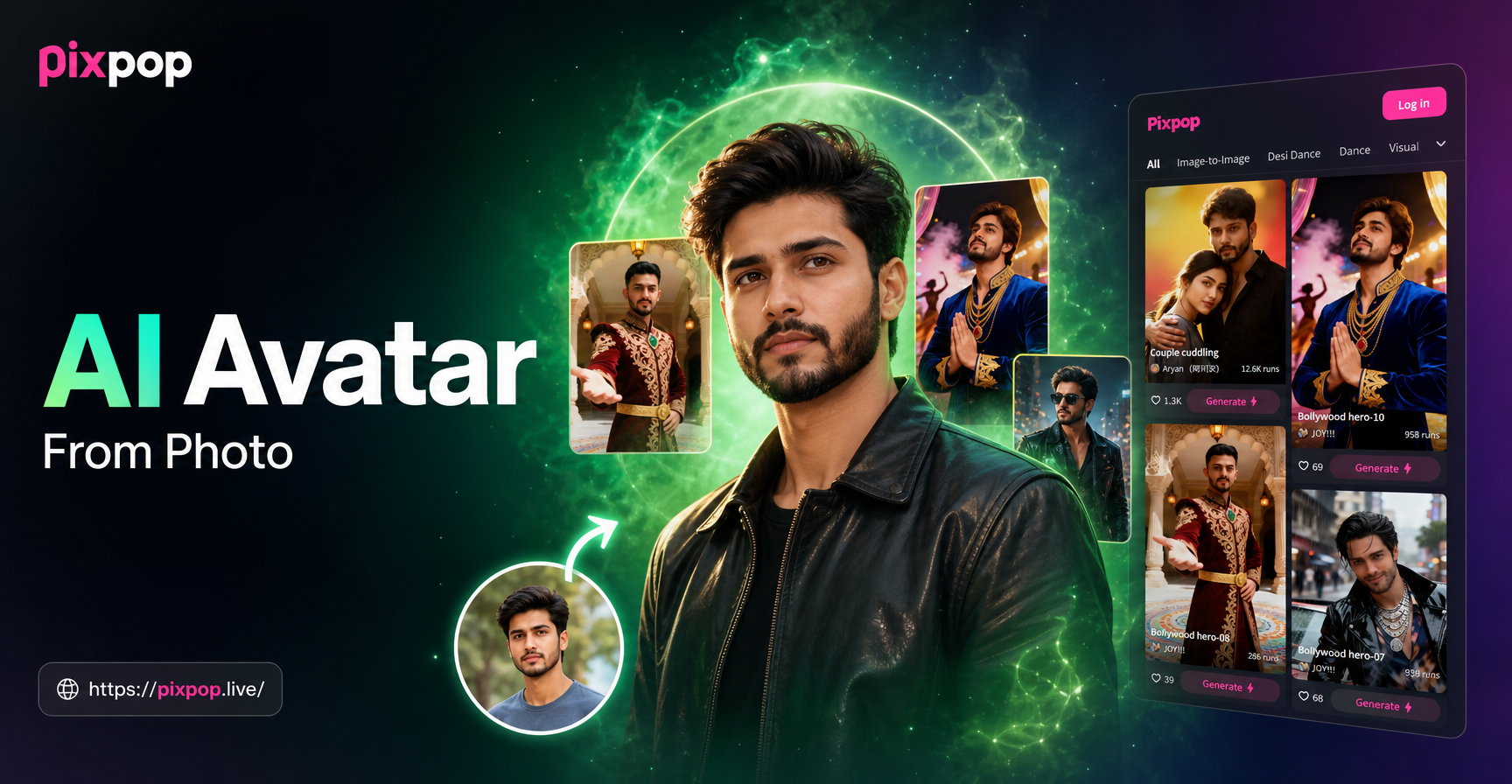
Creating a personalized AI avatar from a photo has become one of the most popular ways to express yourself online. Whether you need a fresh profile picture for social media, a unique character for gaming, or a stylized portrait for professional networking, turning a real photo into a digital avatar is easier than ever. With the pixpop mobile app, you can transform any selfie or photo into a high quality AI avatar in just a few taps. This guide walks you through the entire process, from preparing your photo to choosing the right avatar style and generating a result you can share anywhere.
What Is an AI Avatar and Why Make One from a Photo?
An AI avatar is a digitally generated image that represents you or a fictional character. Unlike manual illustration or graphic design, AI avatar creation uses machine learning to analyze your photo and apply artistic styles, facial features, and creative effects automatically. The result is a unique portrait that can look realistic, anime inspired, cartoonish, or entirely futuristic.
Making an AI avatar from a photo has several practical benefits. You can keep your real face private while still having a recognizable online presence. You can experiment with different looks without changing your actual appearance. For gamers, content creators, and professionals, an AI avatar offers a consistent brand identity that stands out in crowded feeds.
What You Need Before You Start
You only need two things to make an AI avatar from a photo: a mobile device and the pixpop app. Pixpop is available exclusively on Google Play for Android devices. There is no web based version, so all creation happens inside the app. Once installed, you can start creating immediately without any design experience or complex prompt engineering.
Choose a photo that clearly shows your face or the subject you want to turn into an avatar. The photo should be well lit, in focus, and free from heavy filters or obstructions. A front facing selfie or a portrait where the subject is facing the camera works best. While pixpop can handle group photos and multiple faces, a single clear subject typically produces the most accurate avatar result.
How to Make an AI Avatar from Photo Using Pixpop
The entire process takes less than a minute. Pixpop simplifies AI image generation by offering massive style filters and ultra simple controls. You do not need to write long prompts or adjust complicated settings. Follow these four steps to create your own AI avatar from a photo.
Step 1: Download and Install the Pixpop App
Open the Google Play Store on your Android device and search for pixpop. Download and install the app. The installation is quick, and the app does not require any special permissions beyond what is necessary for photo processing. Once installed, open the app and grant access to your photo library so you can upload images easily.
Step 2: Upload Your Photo
Inside the app, tap the image to image or avatar creation tool. Select a photo from your gallery or take a new selfie using the camera. Pixpop will automatically analyze the image and prepare it for style transfer. If you are using a group photo, the AI can identify multiple faces, but for a single avatar, a solo portrait works best. Make sure the face is clearly visible and not obscured by sunglasses, hats, or heavy shadows.
Step 3: Choose an Avatar Style
Pixpop offers more than one million style filters and templates. Browse categories like realistic photography, anime, 3D clay, cyberpunk, watercolor, oil painting, and cinematic quality. Each style transforms your photo into a distinct avatar look. Tap a style to preview it instantly. You can switch between styles as many times as you like before finalizing. For a classic avatar, try realistic or 3D clay. For a more playful or artistic look, anime or watercolor works well. For something bold and futuristic, choose cyberpunk or a cinematic style.
Step 4: Generate and Download Your Avatar
After selecting your preferred style, tap the generate button. The AI processes your photo and applies the chosen style. Within seconds, your new AI avatar appears on screen. If you are satisfied with the result, download the image to your device or share it directly to social media, messaging apps, or your profile. If you want to try a different style, simply go back and select another filter. There is no limit to how many avatars you can create.
Popular AI Avatar Styles You Can Try
Pixpop's massive filter library means you are never stuck with one look. Here are some popular avatar styles that work exceptionally well when converting a photo into an AI avatar.
Realistic Avatar
A realistic avatar preserves the shape and features of your face while enhancing skin texture, lighting, and color balance. This style is perfect for professional profile pictures on LinkedIn, corporate directories, or any platform where you want to look polished but still recognizable. The AI improves sharpness and removes minor imperfections without making you look artificially edited.
Anime Avatar
Anime style avatars are hugely popular on social media and gaming platforms. When you apply an anime filter to your photo, pixpop redraws your face with large expressive eyes, smooth skin tones, and stylized hair that mimics Japanese animation. The result looks like a hand drawn character panel from a manga or anime series. This style works well for creative profiles, fan communities, and casual messaging apps.
3D Clay Avatar
The 3D clay style turns your photo into a charming, toy like figure that resembles a claymation character. Your avatar gets a soft, rounded appearance with smooth textures and a playful vibe. This style is ideal for children's profiles, family friendly content, or anyone who wants a cute and approachable digital identity.
Cyberpunk Avatar
For a futuristic and edgy look, try the cyberpunk style. Pixpop adds neon lighting, high contrast shadows, and sci fi details to your photo. The result is an avatar that looks like it stepped out of a dystopian tech noir universe. Use this style for gaming communities, esports profiles, or content creators who want to project a bold, tech forward image.
Watercolor or Oil Painting Avatar
Artistic styles like watercolor and oil painting transform your photo into a work of art. Soft washes of color, visible brush strokes, and a painterly texture replace the original photographic details. These avatars look beautiful as profile pictures for writers, artists, or anyone who appreciates a more classic artistic aesthetic.
Tips for Better AI Avatar Results
A few simple adjustments can make a huge difference in the quality of your AI avatar. Follow these tips to get the best possible result from pixpop.
- Use a high resolution photo. Clear, detailed images give the AI more information to work with, resulting in sharper and more accurate avatars.
- Avoid harsh shadows or backlighting. Soft, even lighting on the face helps the AI detect facial features correctly.
- Keep the face unobstructed. Remove sunglasses, hats, or face masks so the AI can fully analyze the subject.
- Try multiple styles. Different styles work better with different photos. Experiment with several filters to see which one fits your look best.
- Use a neutral background. A simple background helps the AI focus on the face and reduces unintentional style bleed from busy surroundings.
Common Mistakes and How to Fix Them
Sometimes an AI avatar does not come out as expected. Here are the most common issues and how to correct them.
Blurry or distorted face. This usually happens when the photo is low resolution or the face is too small in the frame. Retake the photo with better lighting and make sure the face occupies at least one third of the image.
Wrong style applied to background. If the background becomes overly stylized or distracting, switch to a photo with a plain background or use a tighter crop around the face.
Unnatural skin tone or color. Some artistic styles intentionally shift colors. If you want a more natural look, choose a realistic or 3D clay style instead of watercolor or cyberpunk.
Multiple faces merged. For group photos, the AI tries to process all faces simultaneously, which can lead to blending. For a single avatar, use a solo photo. If you want a group avatar, ensure each face is clearly separated and well lit.
Creative Uses for Your AI Avatar
Once you create your AI avatar, the possibilities are endless. Use it as your profile picture on Instagram, TikTok, X, or Facebook. Set it as your avatar in gaming platforms like Discord, Steam, or Twitch. Add it to your email signature or professional networking profile for a consistent personal brand. You can even print it on merchandise, use it as a virtual sticker in messaging apps, or incorporate it into videos using pixpop's image to video feature. The same avatar can be animated to blink, smile, or turn its head, bringing your digital identity to life.
Frequently Asked Questions
Do I need any design skills to make an AI avatar from a photo? No. Pixpop is designed to be ultra simple. You upload a photo, pick a style, and tap generate. There is no complicated prompt engineering or manual editing required.
Is pixpop available on iOS or as a web app? Currently, pixpop is available only on Google Play for Android devices. There is no web based version or iOS app at this time.
Can I use a group photo to make an AI avatar? Yes, pixpop supports multi person photo processing. The AI can identify and distinguish different faces. However, for a single avatar, a solo portrait usually gives the most accurate result.
Are the avatars generated in high resolution? Yes, pixpop generates high definition images. The exact resolution depends on the style and source photo, but the results are suitable for profile pictures and social media sharing.
Can I make a video avatar instead of a still image? Yes. Pixpop also offers image to video generation. You can animate your AI avatar to blink, smile, or move, and even generate short narrative videos from a single photo.
Conclusion and Next Steps
Making an AI avatar from a photo is a fast, fun, and creative way to reinvent your digital presence. With pixpop, the process requires no technical skill and takes just a few seconds. Download the app from Google Play, upload your favorite photo, explore the massive library of style filters, and generate an avatar that truly represents you. Whether you want a realistic professional portrait, a cute 3D clay figure, or a bold cyberpunk character, pixpop has the tools to bring your vision to life. Start creating today and share your new AI avatar with the world.