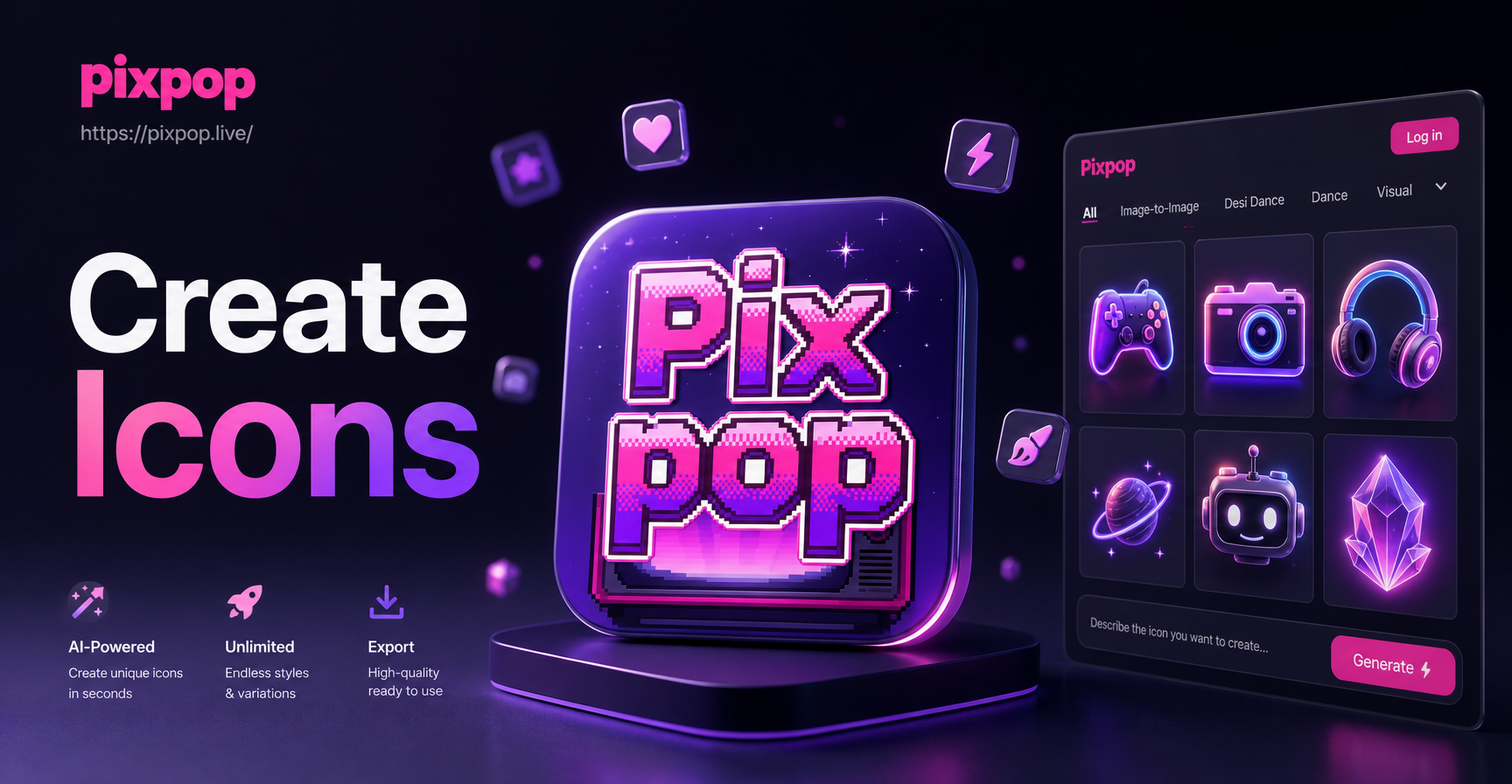
Custom icons are everywhere. They appear on app stores, website navigation bars, social media profiles, and marketing materials. A well-designed icon communicates a brand or function in a single glance, and it can make your product look professional and trustworthy. However, most people do not have the time or skills to hand-craft icons in complex design software. That is where AI icon generation changes the game. With Pixpop, you can create custom icons directly on your phone using simple text descriptions or reference images. No drawing tablet, no vector editing experience, and no expensive software are required.
What Is a Custom Icon and Why Does It Matter?
A custom icon is a small graphic that represents a specific action, object, or brand. Unlike stock icons, custom icons are tailored to your exact needs. They can match your brand colors, follow a unique style, or include specific symbols that generic icon libraries do not offer. Custom icons improve user experience, strengthen brand identity, and help your app or website stand out.
Common use cases include mobile app icons, favicon designs, UI buttons, social media highlights, presentation graphics, and logo marks. The challenge has always been the design process. Traditional tools like Illustrator or Figma require a learning curve. AI tools remove that barrier by generating multiple design options from a text prompt or a rough sketch.
How Pixpop Helps You Create Custom Icons with AI
Pixpop is an all-in-one AI design app available on Google Play. It combines text-to-image, image-to-image, and style transfer technology in a simple mobile interface. Instead of building an icon from scratch, you describe what you want in plain English or upload a doodle, and the AI produces polished icon designs in seconds.
Three features are particularly useful for icon creation:
- Text-to-image generation: Type a prompt like "flat vector icon of a coffee cup, minimal, blue and white" and receive multiple variations.
- Image-to-image transformation: Upload a rough sketch or a photo of a logo idea, and the AI converts it into a clean, professional icon while preserving the subject.
- Massive style library: Choose from over one million filters, including flat design, 3D clay, line art, gradient, isometric, and hand-drawn styles.
Step-by-Step: Create Custom Icons with Pixpop
Follow these steps to generate your first custom icon using the Pixpop mobile app.
- Download the app. Go to Google Play, search for Pixpop, and install it on your Android device.
- Choose icon mode. Open the app and select either the text-to-image or image-to-image feature, depending on whether you have a prompt or a reference image.
- Write or upload. For text-to-image, type a detailed description of the icon, including the subject, style, color scheme, and background. For image-to-image, upload a sketch, photo, or existing icon you want to restyle.
- Pick a style filter. Browse the style library and select a look that matches your brand. For app icons, flat or gradient styles often work best. For game icons, 3D or cartoon styles may be more appealing.
- Generate and refine. Tap generate. The AI will produce several options. Review them, adjust your prompt or filter, and generate again until you are satisfied.
- Save and export. Download the final icon to your phone at high resolution. You can then upload it to your app store listing, website, or social media profile.
10 AI Prompts to Create Custom Icons
Here are ten ready-to-use prompts for different icon styles and subjects. Adjust the words in brackets to match your specific needs, and do not be afraid to combine prompts with different style filters inside Pixpop.
- "Flat vector icon of a lightning bolt, bold yellow and black, minimal, centered, plain background"
- "3D clay icon of a cute robot head, soft pastel colors, glossy finish, app icon style"
- "Line art icon of a mountain range, thin black strokes, white background, minimal travel logo"
- "Gradient icon of a chat bubble with a heart inside, pink to purple, modern social media app icon"
- "Isometric icon of a delivery box, orange and teal, subtle shadows, e-commerce icon"
- "Hand-drawn doodle icon of a coffee cup with steam, sketchy lines, warm brown tones, cafe logo"
- "Neon style icon of a game controller, glowing blue and pink, dark background, gaming app icon"
- "Minimalist icon of a camera, rounded corners, white on transparent background, photography app"
- "Vintage badge icon of a bicycle, retro colors, distressed texture, cycling club logo"
- "Abstract geometric icon of interlocking circles, monochrome, clean lines, tech startup favicon"
When using these prompts, remember to specify the icon shape (square, circle, rounded square) and whether you want a transparent or solid background. Pixpop's AI responds well to clear, direct language.
Tips for Professional-Looking Custom Icons
Even with AI, a few design principles will dramatically improve your results.
- Keep it simple. Icons are small. Avoid too many details, text, or complex scenes. One central object works best.
- Use high contrast. Ensure the subject stands out from the background. Dark on light or light on dark works well.
- Match your brand. Stick to one or two colors from your brand palette. Consistent colors across icons create a unified look.
- Test at small sizes. An icon that looks great at 512 pixels may become unrecognizable at 16 pixels. Zoom out and check readability.
- Leverage negative space. White space around the subject helps the icon breathe and improves clarity.
- Generate variations. Use Pixpop to create multiple versions of the same prompt with different filters. Compare and choose the best one.
Common Mistakes to Avoid When Creating Custom Icons with AI
AI icon generation is powerful, but it is not immune to bad inputs. Avoid these pitfalls to save time and get better results.
- Vague prompts. A prompt like "make an icon" will produce random results. Always include the subject, style, colors, and background.
- Overcomplicating the design. Too many elements or tiny details will look cluttered at small sizes.
- Ignoring style consistency. If you are creating a set of icons, use the same style filter and prompt structure for each one.
- Forgetting the export size. Check the resolution and format before uploading. App stores often require 1024x1024 pixels.
- Relying on text inside the icon. Text is difficult to read at small sizes and may not scale well. Prefer symbols over letters.
Real-World Use Cases for Custom Icons
Custom icons are not limited to app developers. Here are several ways creators and businesses use Pixpop to generate icons.
- Mobile app developers create store listing icons that stand out in crowded categories.
- Website owners design favicons and UI icons for navigation menus and buttons.
- Social media managers produce highlight covers and profile badges for Instagram, YouTube, and Twitch.
- Small business owners generate logo marks and product icons for packaging or menus.
- Content creators make thumbnail badges, channel logos, and presentation icons.
Frequently Asked Questions About Creating Custom Icons with AI
Can I use Pixpop to create icons for commercial projects? Yes, you can use the icons you generate in your own commercial projects. Always check the app's terms of service for the latest usage rights.
Do I need any design experience to create custom icons? No. The text-to-image feature lets you describe what you want in plain language, and the AI handles the design work. A basic understanding of color and composition helps, but it is not required.
What image formats does Pixpop support for export? Pixpop allows you to save generated images to your phone gallery. From there, you can convert or resize them using standard image tools if your project requires a specific format like PNG with transparency or SVG.
Can I upload my existing logo and turn it into a different icon style? Yes, the image-to-image feature is perfect for style transfer. Upload a photo of your current logo or sketch, choose a new style filter, and the AI will generate a refreshed icon while keeping the core subject recognizable.
How many variations can I generate? There is no fixed limit. You can adjust your prompt or filter and generate as many versions as you need until you find the perfect icon.
Conclusion
Creating custom icons no longer requires expensive software or years of design training. With Pixpop, you can transform a simple text description or a rough sketch into a polished, professional icon in less than a minute. The app's massive style library and intuitive interface make it accessible to beginners while offering enough flexibility for experienced designers. Download Pixpop from Google Play today and start building a custom icon set that makes your brand unforgettable.