What Are AI Image Upscalers?
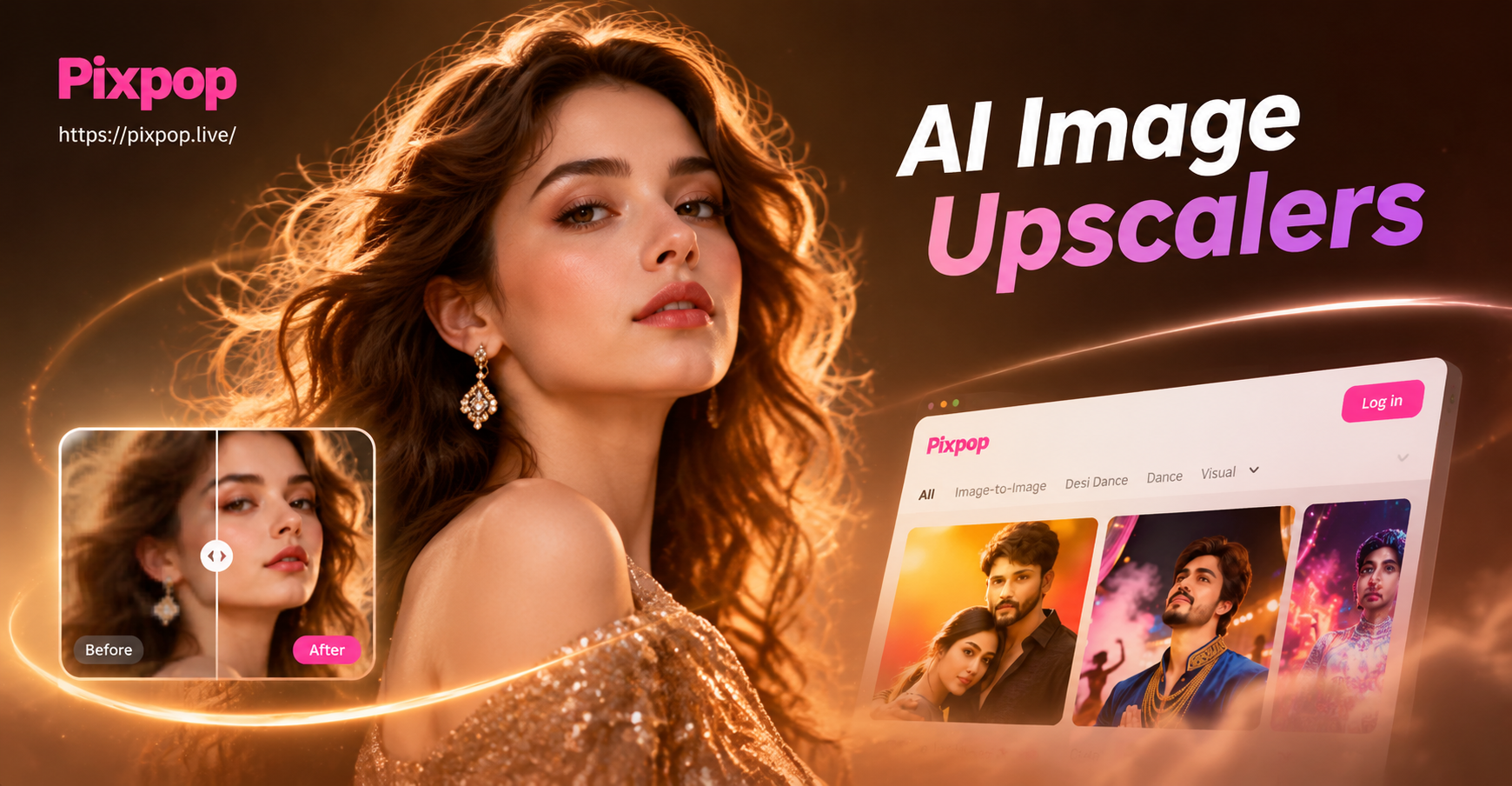
AI image upscalers are software tools that use machine learning to increase the resolution of digital images while adding plausible detail that was not present in the original file. Unlike traditional upscaling methods such as bilinear or bicubic interpolation, which simply stretch pixels and produce blurry or jagged edges, AI upscalers analyze the image content and reconstruct high-frequency details like textures, edges, and subtle gradients.
These tools are built on deep neural networks trained on millions of image pairs. The network learns to map a low-resolution input to a high-resolution output by recognizing patterns, shapes, and textures. The result is a larger image that looks sharper and more natural, making it suitable for print, large-format displays, or detailed digital work.
For designers, AI upscalers solve a common problem: client-provided images that are too small, stock photos downloaded at low resolution, or legacy assets that need to be repurposed for modern media. By using AI upscalers, designers can avoid reshooting or recreating visuals and instead enhance what they already have.
Why Designers Need AI Image Upscalers
Enhancing Low-Resolution Assets for Print
Print design requires high pixel density, typically 300 DPI or more. A 200x200 pixel logo cannot be placed on a business card or banner without visible pixelation. AI upscalers can increase the pixel dimensions by 2x or 4x while maintaining sharp edges and smooth gradients, making the asset usable for print. This saves time and prevents the need to request higher-resolution files from clients.
Restoring Old or Compressed Graphics
Many design archives contain JPEGs that have been compressed repeatedly, leading to artifacts, noise, and softness. AI upscalers often include a restoration component that removes compression artifacts and enhances fine details. Designers can recover usable imagery from old websites, scanned documents, or legacy branding materials.
Improving Screenshots and Web Images
Screenshots from websites or apps are often captured at screen resolution, which may be too low for use in presentations, documentation, or marketing collateral. AI upscalers can clean up text, sharpen interface elements, and boost the overall quality so that screenshots look professional when enlarged.
Key Features to Look For in an AI Upscaler
Output Quality and Detail Preservation
The most important factor is how faithfully the tool preserves the original image while adding detail. Look for upscalers that support multiple models optimized for different content types, such as portraits, landscapes, text, or line art. Some tools allow you to adjust the level of enhancement to avoid over-sharpening or introducing unrealistic artifacts.
Batch Processing and Speed
Design projects often involve dozens of images. A good AI upscaler should support batch processing, allowing you to queue multiple files and process them in one go. Speed matters, especially when working with large TIFFs or high-resolution exports. Cloud-based tools may offer fast GPU processing, while desktop applications give you more control over settings.
Format Support and Integration
Designers work with a variety of file formats: PNG, JPEG, TIFF, WebP, and sometimes RAW. Ensure the upscaler supports your most common formats. Integration with design tools like Photoshop, Lightroom, or Figma can streamline the workflow. Some upscalers offer plugins or direct export options that save time.
Top AI Image Upscalers for Designers
Adobe Super Resolution
Adobe Super Resolution is built into Lightroom and Photoshop. It uses AI to double the linear resolution of an image, effectively quadrupling the pixel count. It works best on RAW files and produces excellent results for photographs. Designers who already use Adobe Creative Cloud can access this feature without additional cost. However, it is limited to a 2x scale and may not handle text or synthetic graphics as well as specialized tools.
Topaz Gigapixel AI
Topaz Gigapixel AI is a standalone desktop application that offers up to 6x upscaling with dedicated models for faces, landscapes, artwork, and low-resolution images. It includes a preview window for comparing before and after, and supports batch processing. The output is consistently high quality, making it a favorite among professional designers and photographers. The main drawback is the one-time purchase price and the need for a reasonably powerful computer.
Let's Enhance
Let's Enhance is a web-based upscaler that focuses on e-commerce and print design. It offers presets for product photos, portraits, and illustrations. The tool can upscale up to 16x and includes automatic color correction and JPEG artifact removal. It has a free tier with limited credits and paid plans for heavier use. Designers who prefer a browser-based workflow will appreciate the simple drag-and-drop interface.
Upscale.media
Upscale.media is a free online upscaler that supports up to 4x enlargement. It is easy to use and requires no sign-up for basic tasks. The output quality is decent for web graphics and social media assets, though it may not match the fine detail of Topaz or Let's Enhance. It is a good option when you need a quick upscale without installing software.
VanceAI Image Upscaler
VanceAI offers a suite of AI image enhancement tools, including an upscaler that can increase resolution by up to 8x. It provides specialized modes for anime, artwork, and text. The web interface is clean, and batch processing is available on paid plans. VanceAI also offers a desktop version for offline work. Pricing is subscription-based, which may be a consideration for occasional users.
pixpop - Mobile AI Upscaling and Creative Tools
For designers who need to upscale images on the go, the pixpop mobile app provides a quick and intuitive solution. While not a full desktop upscaler, pixpop's AI enhancement features can improve image quality, apply style filters, and generate high-resolution versions of photos directly from your phone. It is especially useful for social media content creators and designers who work with mobile photography. The app's simplicity makes it a handy addition to your toolkit when you are away from your desktop workstation.
How to Get the Best Results from AI Upscalers
Start with the Best Original Possible
AI upscalers work best when the source image is as clean as possible. Avoid upscaling images that are extremely blurry or have heavy compression artifacts. If possible, obtain a higher-quality original before upscaling. For scanned images, use a high DPI setting and clean the scan before processing.
Choose the Appropriate Upscale Factor
Do not over-upscale. Enlarging an image by 8x from a tiny thumbnail will often produce soft or unnatural details. Most tools perform well at 2x to 4x. If you need a larger size, consider upscaling in multiple steps or using a tool with advanced face recovery for portraits.
Check for Artifacts and Adjust
After upscaling, zoom in to 100% and inspect the result. Look for unusual textures, oversharpened edges, or color shifts. Many upscalers include a denoise slider or a model selector. Experiment with different settings to find the right balance between sharpness and natural appearance.
Use Noise Reduction When Available
If the original image has visible noise, apply noise reduction before or during the upscaling process. Some tools combine both steps automatically, which can produce cleaner results. Be careful not to remove too much texture, as this can make the image look plastic.
Integrating AI Upscalers into Your Design Workflow
AI upscalers should be used early in the project when you are preparing assets. For example, if you receive a low-resolution logo, upscale it before placing it into a layout. This prevents pixelation in the final export. Create a consistent process: batch process all low-res assets at the start, then proceed with your regular design work.
Consider creating a library of upscaled assets for reuse. Many designers maintain a folder of high-resolution versions of commonly used graphics, such as icons, logos, and textures. By upscaling once and saving the output, you save time on future projects.
Automation can further streamline the process. Some upscalers offer API access or integration with cloud storage. If you frequently receive client files, you can set up an automated pipeline that upscales any image below a certain resolution as soon as it is uploaded.
Conclusion
AI image upscalers are now an essential part of a designer's toolkit. They rescue low-resolution assets, restore old graphics, and enable you to deliver high-quality work even when the original files are less than ideal. By understanding the strengths of different tools and following best practices, you can dramatically improve your workflow and produce visuals that look professional at any size. Whether you choose a desktop powerhouse like Topaz Gigapixel AI, a web-based solution like Let's Enhance, or a mobile option like pixpop, the ability to enlarge images without losing quality gives you a creative advantage. Start experimenting with these tools today and see how they can transform your design projects.