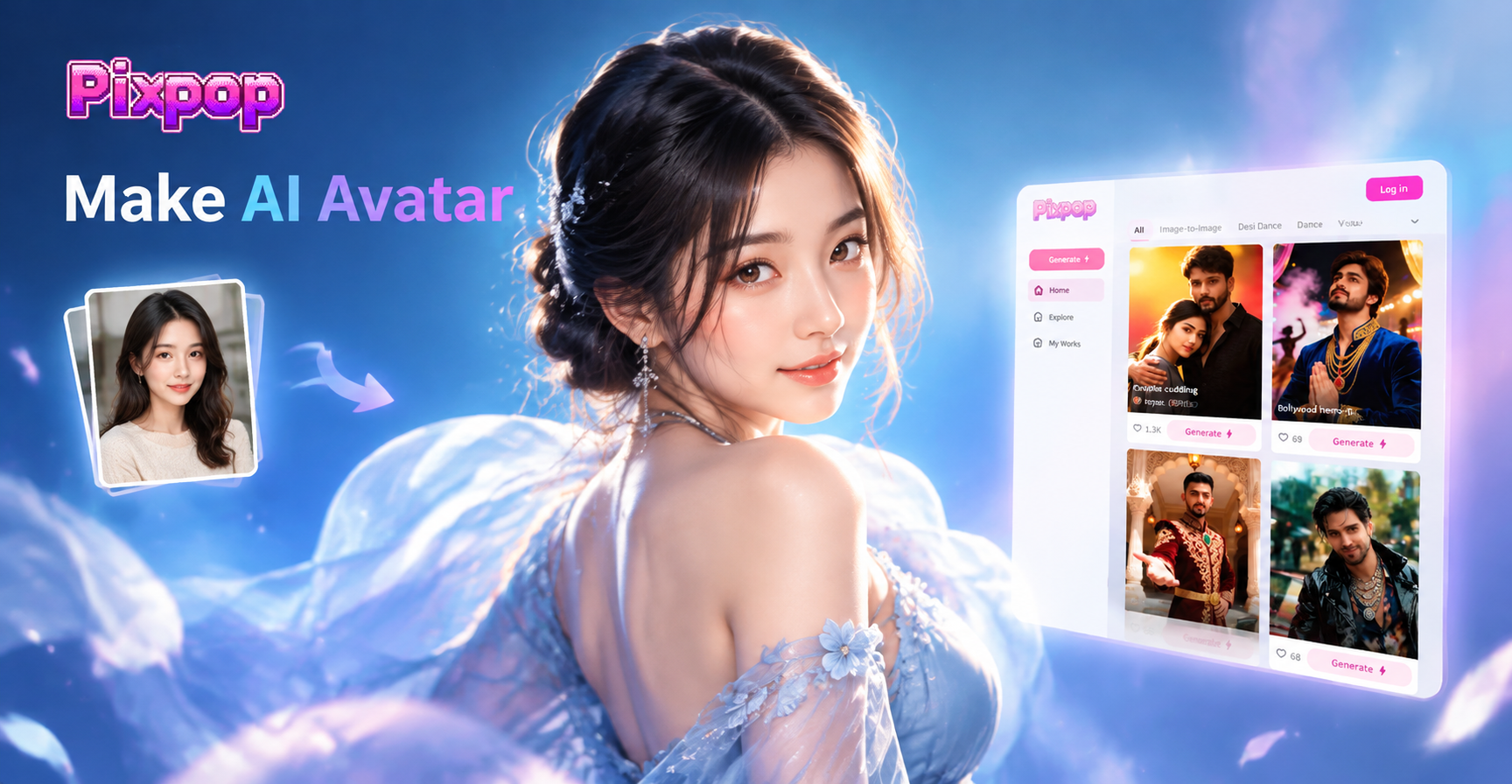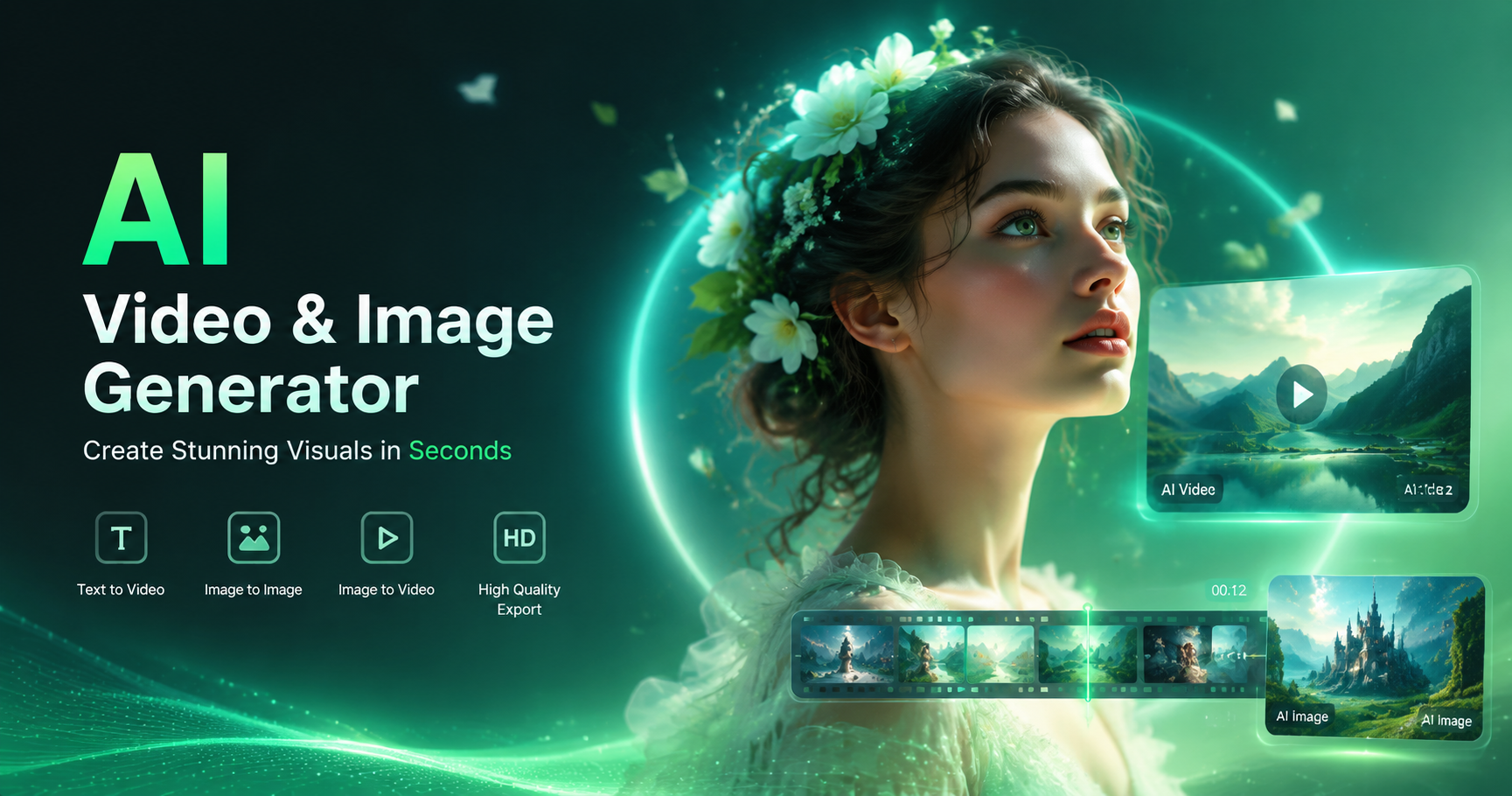
If you have been searching for a Reve AI alternative, you likely want a creative AI tool that handles image generation, style transfer, and short video effects without a complicated setup. Pixpop is a mobile-first AI design app that brings these workflows into one place. Instead of jumping between multiple platforms, you can generate images from text, restyle uploaded photos, animate still portraits, and edit group shots from a single Android app.
Why People Search for a Reve AI Alternative
Creators often start with one AI tool, then look for an alternative when their needs expand beyond a single filter or workflow. A common reason is the need for more style variety. Another is the desire to combine photo and video editing in one app. Some users also want mobile access so they can create on the go. If Reve AI does not fit the way you prefer to work, a practical alternative should reduce friction rather than add extra steps.
When comparing any Reve AI alternative, look at four areas: image quality, style selection, ease of use, and output flexibility. The best option should work with both text prompts and uploaded reference images. It should also support video, because short form clips often perform better on social media.
What a Strong Reve AI Alternative Should Include
- Text to image generation: Type a short description and receive a finished image without learning advanced prompt engineering.
- Image to image style transfer: Upload a photo and apply a new visual style while keeping the core subject recognizable.
- Text to video and image to video: Create clips from a script or animate a still photo with natural motion.
- Large style library: Choose from realistic photography, anime, 3D clay, cyberpunk, watercolor, oil painting, cinematic looks, and more.
- Multi person editing: Process group photos without blending faces or losing individual details.
Pixpop as a Mobile-First Reve AI Alternative
Pixpop is available on Google Play as an all-in-one AI design tool. Its core features include text-to-image, text-to-video, image-to-image, and image-to-video creation, plus more than one million style filters and templates. The app is designed around a simple workflow: upload a photo or enter a prompt, pick a style, and generate the result. You do not need to install desktop software or manage complex model settings.
Because Pixpop runs on mobile, it fits creators who want to experiment while commuting, filming behind the scenes, or preparing quick social media posts. The interface focuses on preset style templates, so you spend less time writing long prompts and more time iterating on visual ideas.
Core Creative Workflows in Pixpop
Text to Image Generation
With text-to-image, you can describe a scene, choose a style template, and generate a high resolution image. For example, you might type a prompt about a rainy Tokyo street in cyberpunk style. Instead of perfecting camera settings or negative prompts, you select a visual style and let the AI handle the details.
This makes it useful as a Reve AI alternative if you want rapid concept art, social media visuals, or profile pictures with a distinctive look.
Image to Image Style Transfer
Upload a portrait, product shot, or landscape photo and apply a style transformation. The AI can keep the subject's facial structure and clothing recognizable while changing the entire visual language. For instance, a casual portrait can become a watercolor painting, a 3D clay render, or a cinematic film still.
Image to Video and Text to Video
Static photos can be animated with subtle movements such as blinking, smiling, or turning the head. You can also create short video clips from a text script. These tools are especially handy for social media, where motion often improves reach and engagement.
Multi Person Photo Processing
Group photos often create problems for AI editing because faces can blend together or details can be lost. Pixpop identifies and separates different faces in a group shot, making it possible to generate multi person interactions or apply a unified style without destroying individual features.
Prompts to Try in a Reve AI Alternative
Even though Pixpop reduces the need for long prompts, a clear description still helps you get consistent results. Here are several examples you can adjust for your own photos.
- A close up portrait of a woman in a soft red dress, warm studio lighting, 85mm lens look, realistic skin texture, cinematic color grade.
- An anime style portrait of a man walking through a neon lit cyberpunk alley, rain reflections, teal and magenta palette.
- A group of four friends laughing at a summer music festival, golden hour, 35mm film aesthetic, candid energy.
- A watercolor painting of a coastal village at sunrise, loose brushstrokes, pastel sky, calm composition.
- Turn this portrait into a Ghibli style animation scene with a gentle breeze and soft natural light.
- Animate this photo: slow smile, natural head turn, soft eye blink, warm indoor lighting.
To adapt these prompts, change the subject, location, color palette, lighting, or output style. Keep the structure simple: subject, setting, action or mood, visual style, and lighting. If a result looks too soft or off model, add more detail to the subject description or switch to a style template that matches your goal more closely.
Common Weak Results and How to Fix Them
Every AI creative tool can produce images that look blurry, over-processed, or inconsistent. When that happens, the fix is usually in the input photo or the level of detail in your prompt.
- Blurry or low detail faces: Use a photo with clear lighting and avoid heavy shadows across the face.
- Faces blending in group shots: Choose a close group photo and avoid overlapping faces. The multi person processing works best when each face is visible.
- Wrong style intensity: If the result feels too far from the original, switch to a milder style template or use image-to-image with a clearer reference.
- Unnatural motion in video: For image-to-video, select a prompt that matches the angle of the original photo. A slow smile works better on a front facing portrait than on a profile shot.
- Mismatched colors: Add a color palette note such as pastel tones, warm golden light, or teal and orange cinematic grade.
Who Should Consider Pixpop
Pixpop is a strong fit for social media creators, small business owners, and casual users who want an all-in-one AI tool without desktop complexity. If you regularly post reels, stories, or product visuals, the combination of photo and video tools in one mobile app can save time. It is also useful if you enjoy experimenting with popular style trends such as Ghibli animation, 3D clay, or cinematic portraits.
If your main priority is professional video editing with multi track timelines or high end compositing, a dedicated desktop video editor may still be better for those tasks. But for fast AI image generation and short form video effects, a mobile alternative like Pixpop covers a wide range of creative needs.
Is Pixpop the Right Reve AI Alternative for You?
If you want a straightforward way to generate images from text, restyle photos, and turn static portraits into short videos, Pixpop is a practical choice. The app does not require complex prompt engineering, and the large style library gives you room to explore many looks. Download Pixpop from Google Play, open a style template, and test a small project before committing to a full creative workflow. This hands on test is the fastest way to see whether it meets your needs as a Reve AI alternative.