What Is a Vector Image?
A vector image is a digital graphic made from mathematical paths instead of pixels. Each path uses points, lines, curves, and polygons. These elements are defined by coordinates and equations. When you scale a vector image up or down, the equation is recalculated and the graphic remains perfectly sharp. This is why vector images are the standard for logos, icons, typography, illustrations, and any design that needs to appear at multiple sizes.
A vector image is different from a raster image, such as a JPEG or PNG. Raster images are made from a fixed grid of pixels. When you enlarge a raster image, the pixel grid becomes visible and the edges look blurry or jagged. Vector images avoid this problem entirely.
The Basic Definition
A vector image is often described as a scalable graphic. The word vector comes from mathematics, where a vector is a quantity defined by direction and magnitude. In graphic design, a vector describes a path between two points. Software reads the path and renders it as a line, shape, or curve. Fill colors, stroke weights, gradients, and opacity are stored as separate instructions. This structure keeps the file lightweight and extremely flexible.
When you open a vector file in a design program, you can select individual paths and edit them without losing quality. You can change the color of one shape, move an anchor point, or resize the entire artwork. Nothing becomes pixelated because there are no pixels to distort.
Vector vs Raster: The Key Difference
The main difference between a vector image and a raster image is how each stores visual information. Raster images use a grid of colored squares called pixels. Vector images use mathematical paths. This single difference affects resolution, file size, editing, and the types of projects where each format works best.
Raster formats include JPEG, PNG, GIF, and WebP. They are ideal for photographs and highly detailed images with complex color transitions. Vector formats include SVG, EPS, AI, and PDF. They are ideal for logos, icons, diagrams, and clean illustrations.
If you take a small logo saved as a JPEG and place it on a billboard, the logo will look blurred. If you save that same logo as a vector image, it will print sharply at any size. That is why professional brand files are usually vector.
Why Choose a Vector Image?
Choosing a vector image makes sense when your design must remain crisp across different devices, print sizes, and digital platforms. The format offers several practical benefits.
Infinite Scalability
A vector image can be resized from a tiny favicon to a massive storefront sign without losing detail. This is essential for logos, marketing materials, and user interface elements. You create the artwork once and use it everywhere.
Smaller File Sizes
Because vector images store instructions rather than millions of pixel values, their file sizes are often much smaller than high-resolution raster images. A simple SVG logo may be only a few kilobytes. That makes vector images faster to load on websites and easier to share by email.
Easy Editing
Each element in a vector image remains separate and editable. You can change a single shape, adjust a color palette, or replace a font without rebuilding the entire design. This flexibility speeds up revisions and keeps your work consistent.
Common Uses of Vector Images
Vector images are used across many design fields because they are flexible and precise. Here are the most common applications.
Logos and Branding
A logo must look sharp on a business card, a website header, and a trade show banner. Only a vector image can meet that requirement. Brand guidelines usually include vector versions of the logo in multiple color variants.
Icons and User Interface Design
Icons in mobile apps and websites are often built as SVG files. They need to render clearly on high-resolution screens and adapt to different themes. Vector icons keep the interface clean and responsive.
Print and Merchandise
Print shops use vector files for stickers, apparel, signage, and packaging. Vector artwork scales to any physical size and supports spot colors. This prevents blurry edges and production delays.
Typography and Lettering
Fonts are vector based. Each letter is a set of paths that can be scaled infinitely. Designers also create custom vector lettering for posters, book covers, and brand marks.
Common Vector Image File Formats
Several file formats are associated with vector graphics. Knowing which one to use helps you share and export your work correctly.
SVG
SVG stands for Scalable Vector Graphics. It is an open standard designed for the web. SVG files are written in XML and can be edited with a text editor, printed, or displayed in any modern browser. Because they are resolution independent, SVGs are the preferred format for icons, logos, and responsive website graphics.
EPS
EPS stands for Encapsulated PostScript. It is a widely supported format for print production. Many printing companies accept EPS files for signage, merchandise, and promotional products. EPS is compatible with most professional design software.
AI
AI is the native file format of Adobe Illustrator. It preserves layers, paths, colors, and effects. Designers often work in AI and then export to SVG or EPS for final delivery. If you need to collaborate with a professional designer, an AI file is often the most useful.
PDF is a versatile format that can contain both vector and raster content. A vector PDF remains sharp when zoomed or printed at high resolution. PDFs are common for brochures, posters, and client proofs because they can be opened on almost any device.
How to Create a Vector Image
You do not need to be a professional illustrator to create a vector image. A clear concept, the right tools, and a simple workflow will get you started. While traditional vector software requires manual path drawing, AI image tools can now produce vector-style artwork from a text prompt or a reference photo.
Start with a Clear Concept
Before you open any software, decide what the vector image should communicate. A strong concept works with flat shapes, bold silhouettes, and limited colors. Think about the subject, composition, and mood. Simple ideas often make the best vector images because they remain readable at small sizes.
Generate a Vector-Style Base with AI
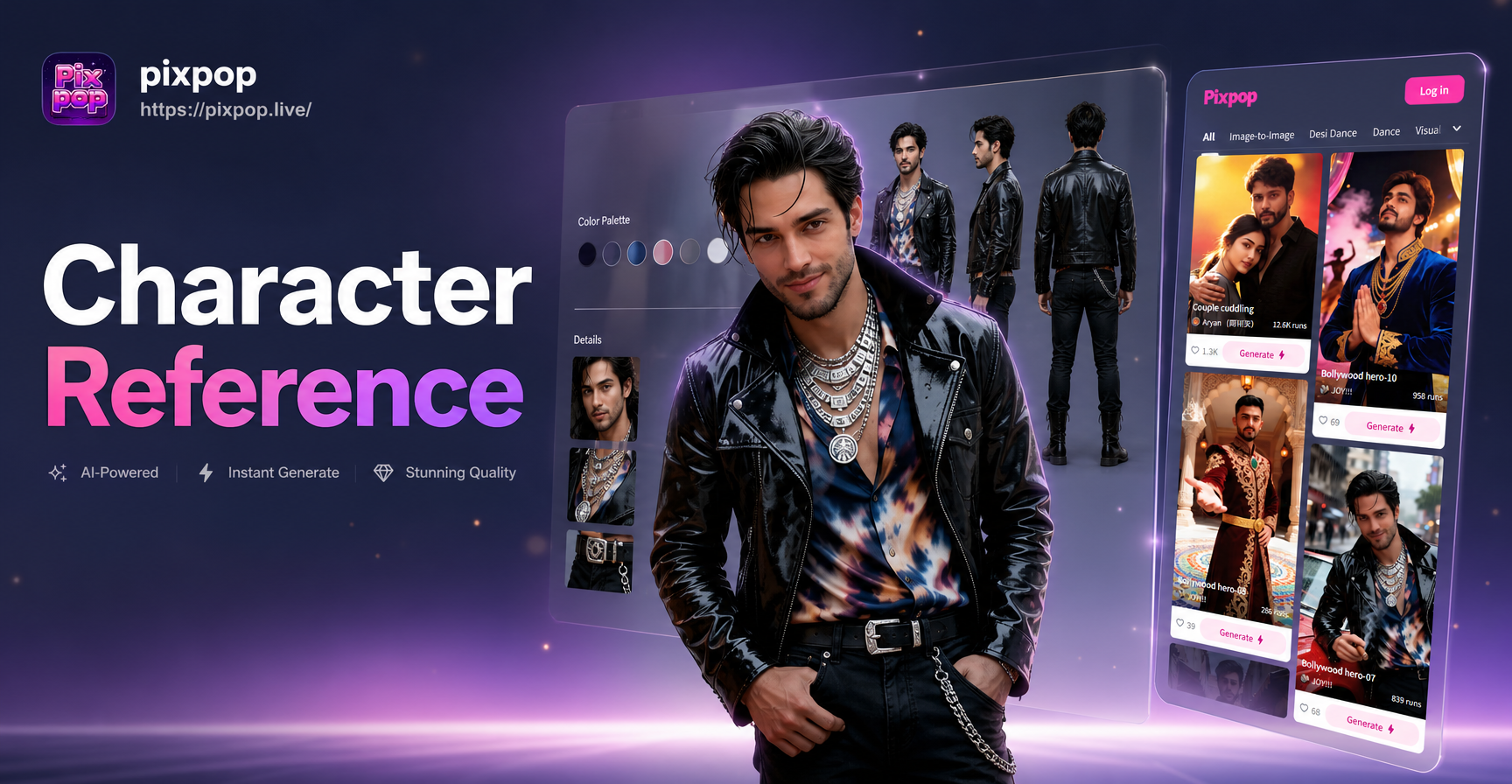
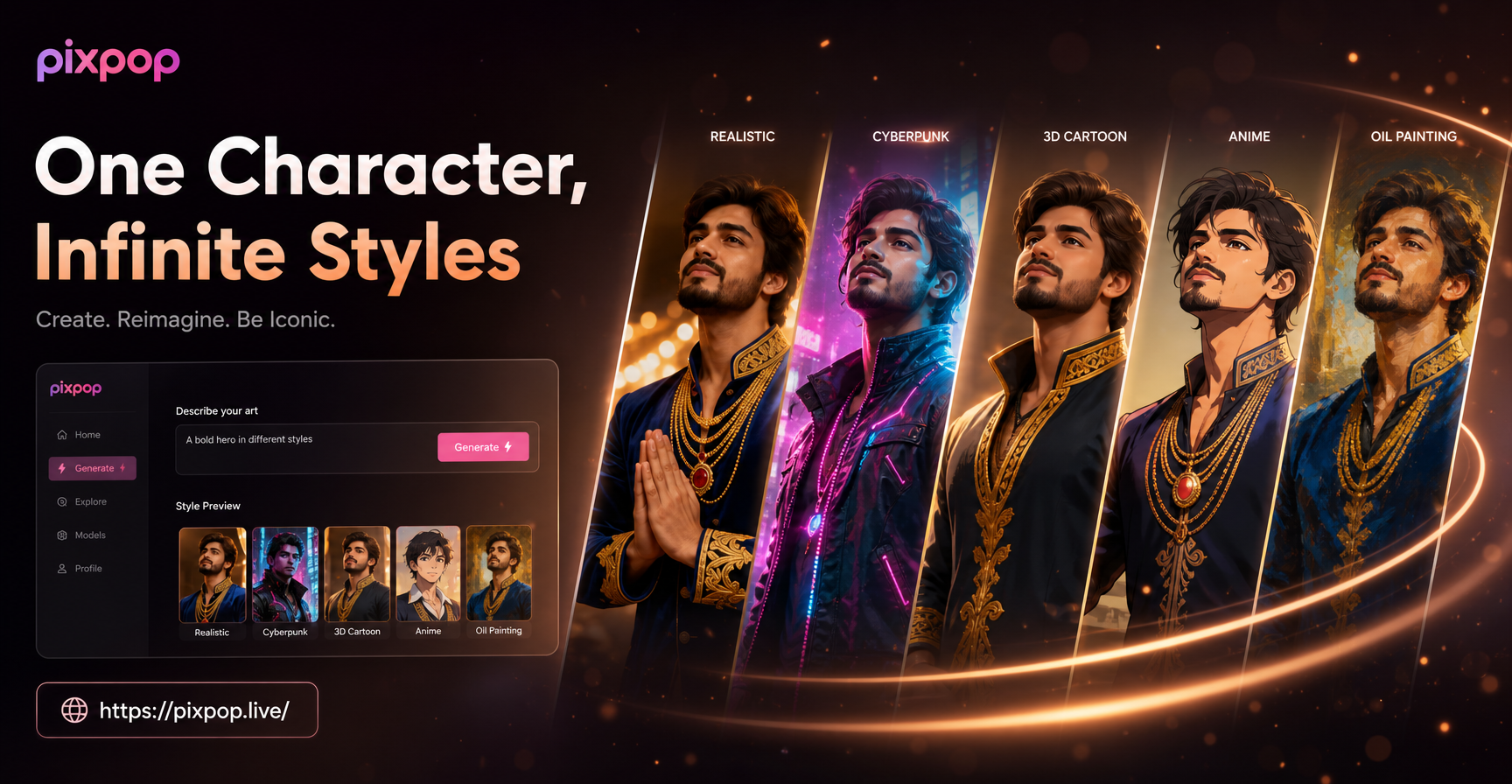
AI design apps like pixpop include a large library of style templates. You can enter a text prompt such as "flat vector illustration of a mountain landscape, clean lines, solid colors, no gradients" and choose a template. The app then generates a crisp, vector-inspired image in seconds. You can also upload a photo and apply a vector-style filter to give it a clean, graphic look.
Keep in mind that most AI image generators output raster images, not true vector files. The visual style may look like a vector image, but it is still made of pixels. If you need a fully editable SVG or EPS, you will need to trace or recreate the AI output in a vector editor.
Refine in a Vector Editor
After you have a strong base image, import it into a vector editor such as Inkscape, Adobe Illustrator, or Figma. Use the pen tool to trace the main shapes, adjust anchor points, and convert flat color areas into clean vector paths. This step gives you full control over the final output and lets you export true SVG, EPS, or AI files.
If tracing sounds time consuming, start with a simpler composition. The fewer curves and color areas you need to trace, the faster the process becomes.
Tips for Better Vector-Style AI Results
When you use AI tools to create vector-style images, the quality of your prompt and reference material directly affects the result. Use these tips to get cleaner, more usable artwork.
Write Specific Prompts
Instead of writing "vector art", describe the subject, style, colors, and level of detail. For example, "minimalist vector illustration of a red bicycle, flat design, crisp outlines, solid background, no shadows, no gradients". The more specific the prompt, the more likely the AI will produce a graphic that looks like a true vector image.
Choose Flat Color Palettes
Flat colors are a defining feature of many vector images. Ask for three to five solid colors and no gradients. Flat color areas are easier to trace, edit, and scale. They also match the clean aesthetic of professional vector design.
Avoid Photographic Textures
Photographs, realistic shadows, and complex textures pull a design away from the vector style. Prompt for clean lines, simple shapes, and bold contrasts. This keeps the output closer to the look of an SVG or EPS illustration.
Frequently Asked Questions
Can I convert a photo into a true vector image?
Yes, but it usually requires tracing. You can upload the photo to an AI app for a vector-style preview, then trace the main shapes in vector software. Automatic tracing tools can help, but manual cleanup often produces the best result.
Is an SVG always a vector image?
Not always. An SVG file can contain embedded raster images, but a properly built SVG with paths, shapes, and text is a vector image. Always check how the file was created before using it for print or large-scale display.
Do I need Adobe Illustrator to make a vector image?
No. Free and low-cost alternatives such as Inkscape, Vectr, and Figma can create and export standard vector files. The best tool is the one you are comfortable using.
Conclusion
A vector image is a powerful, flexible format for clean, scalable graphics. Whether you need a logo, icon, diagram, or illustration, understanding vector paths, file formats, and editing techniques gives you a strong foundation. AI tools like pixpop can speed up the creative process by generating vector-style concepts from simple text prompts. Combine that speed with a vector editor and you can produce artwork that stays sharp everywhere it appears.