What Does AI Image from Another Image Mean?
AI image from another image means using an existing photo as the reference point for a new AI generated image. You do not begin with an empty text prompt. You upload a source image, and the AI reads its subject, composition, and lighting. Then it creates a new version based on a style template or an additional instruction. This allows you to keep the person or object recognizable while changing the artistic medium, background, wardrobe, pose, or overall mood.
This process is sometimes called image to image generation or reference based image generation. It is one of the most useful AI tools because it supports real portraits, group photos, product shots, pet pictures, and even old family photographs. Pixpop includes this feature inside a single mobile app, so you can create a new image from another image without leaving your phone.
How AI Image from Another Image Works
When you upload an image, the AI first analyzes the important visual elements. These usually include facial features, body shape, objects, colors, edges, and the overall scene. Then the system blends that information with your chosen style or prompt. The result is not a simple filter overlay. It is a new image that reinterprets the original while preserving the core subject.
Reference Image vs. Style Template
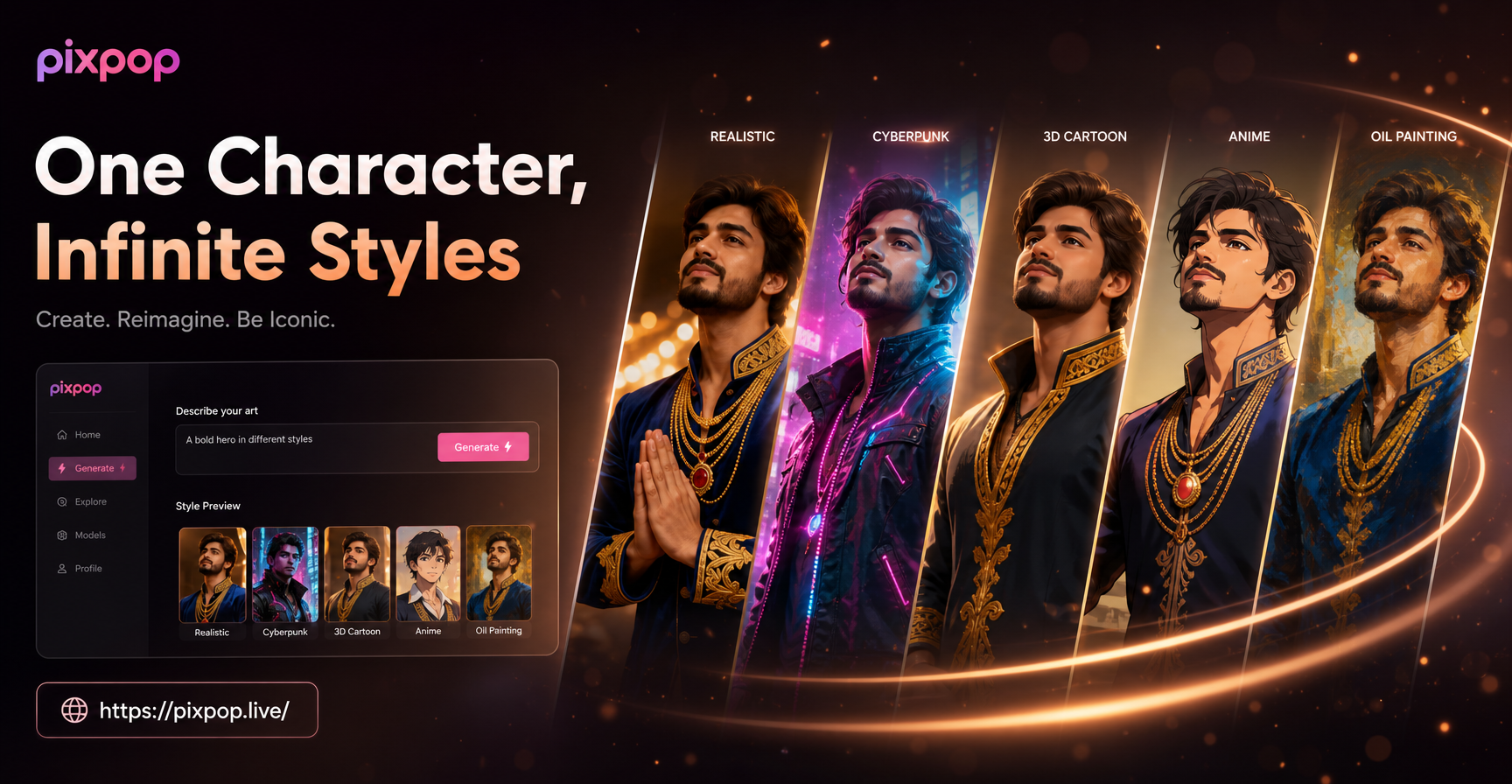
Pixpop separates two parts of the creative process. The reference image tells the AI what to keep. The style template tells the AI how to render it. For example, a clear portrait of a woman can be turned into a Ghibli style character, a cyberpunk poster, a watercolor painting, or a 3D clay sculpture. The face remains similar, but the texture, colors, and background change completely.
Why Prompts Still Matter
Although style templates do a lot of the work, a short prompt makes the output more specific. If you want the subject in a red coat instead of the original blue shirt, you can write, keep the same face but change the outfit to a red coat. If you want a beach background, add that instruction. This combination of reference image plus prompt gives you detailed control without requiring prompt engineering skills.
What You Can Create from Another Image
- Photo to art conversions: Turn a family portrait into an oil painting, watercolor, anime illustration, or pencil sketch.
- Outfit and wardrobe changes: Keep the person and pose while trying a different clothing style or color.
- Background replacements: Move the subject from a living room to a street in Tokyo, a snowy mountain, or a fantasy castle.
- Character redesigns: Give a portrait a cinematic or comic book look without changing the identity of the person.
- Old photo revival: Use a blurry or faded photo as the source and let AI sharpen details, add color, and enlarge the image for modern use.
- Group photo transformations: Apply the same artistic style to multiple people in one image while keeping each face distinct.
Step by Step: Turn a Photo into an AI Image with Pixpop
- Download the Pixpop app. Pixpop is available on Google Play. It is a mobile app, so all generation happens on your phone.
- Open the image to image feature. Choose the workflow that accepts an uploaded photo as the source.
- Upload your source image. Pick a clear photo where the subject is visible. Portraits with soft, even lighting work best.
- Select a style template. Browse the built in filters, from realistic photography to anime, 3D clay, watercolor, oil painting, and cinematic styles.
- Add an optional prompt. Type one short instruction such as change the background to a snowy street, or turn this photo into a vintage illustration.
- Generate and save. Let the AI create the new image. If the result is not perfect, adjust the prompt or try another style filter and generate again.
Prompt Examples for AI Image from Another Image
These prompts work well when you use an existing photo as the reference image. Keep them short and specific. Change the details to match your photo.
- Keep the same face and pose but turn this portrait into a soft watercolor painting with pastel colors and a plain white background.
- Transform this reference photo into a cyberpunk character. Keep the original face, add neon lights, a dark rainy city, and a reflective jacket.
- Turn this couple photo into a Ghibli style animation with a green meadow, soft clouds, and warm afternoon light.
- Keep the same person but change the background to a cozy cafe with soft window light and a blurred bookshelf.
- Make this old black and white family photo look like a modern color portrait. Sharpen the faces and keep the original composition.
- Convert this pet photo into a 3D clay sculpture with a simple studio background and playful colors.
- Keep the subject and pose but give the image a cinematic movie poster look with dramatic side lighting and a dark teal color grade.
- Turn this group photo into an oil painting for a wedding anniversary gift. Preserve each face and use a warm, elegant color palette.
If a prompt does not give enough change, add a simple adjective such as softer, brighter, more detailed, or photorealistic. If the face drifts too far from the original, mention keep the original face or keep the subject recognizable.
How to Get Better Results from an Existing Image
- Use a high resolution source. A clear original gives the AI more useful detail.
- Avoid heavy shadows and objects that cover the face. Hats, glasses, and hair across the eyes can reduce the accuracy of a portrait.
- Make one major change at a time. If you want a new background, new outfit, and a new art style, test them separately first.
- Match the style to the prompt. If you choose an oil painting filter but ask for photorealistic skin, the result may look inconsistent.
- Keep the prompt brief. Ten to twenty words is often enough. Long prompts can introduce conflicting details.
- Try multiple filters. Pixpop has more than one million style templates, so the same photo can produce many different results.
Common Mistakes and How to Fix Them
The face changed too much. Use a closer crop and add keep the original face to your prompt. Try a lighter style rather than an extreme character filter.
The hands or fingers look odd. AI can struggle with hands. Choose a source photo where hands are relaxed and clearly visible, or crop the image to focus on the face and upper body.
The result is blurry. Check the resolution of the original photo. Old, compressed, or very small images often produce softer results. Use the cleanest version you have.
The style does not match the reference. Some filters are stronger than others. If the output looks too different, keep the same prompt and reduce the number of style elements. For example, change cyberpunk rain and neon to cyberpunk city.
The background merged with the subject. Choose a source image with a clear separation between subject and background. A portrait with a simple background is easier to transform than a busy group photo.
Why Use Pixpop for AI Image from Another Image?
Pixpop is designed for quick creative work on mobile. You do not need to learn complex prompt formulas or use a desktop editing suite. The app offers image generation, video generation, and image to image generation in one place. For image to image tasks, you can combine a source photo with a wide style library and a simple text instruction. This makes it practical for social media creators, small business owners, event photos, and personal art projects.
Because Pixpop works on Google Play, you can start with a photo in your camera roll and finish with a shareable image in a few minutes. The app also supports multi person photos, so group pictures keep individual faces recognizable during style transfers.
Quick Questions About AI Image from Another Image
Can I use any photo as the source?
Yes. Portraits, group photos, pet photos, product shots, and old family pictures all work. Clear, well lit photos usually give the most accurate results.
Do I need to write a prompt?
No. You can upload a photo and select a style template without typing anything. A short prompt only helps when you want a specific change, such as a new background or a different outfit.
Will the person in the photo remain recognizable?
In most cases, yes. Pixpop compares the uploaded image with the chosen style and works to preserve the main subject. Using a high quality close up or a clear upper body shot improves accuracy.
Is Pixpop available as a website?
No. Pixpop is a mobile app available on Google Play. All image and video generation is done inside the app.
Start Turning Your Photos into New AI Images
The best way to understand AI image from another image is to try it with a photo you already have. Download Pixpop from Google Play, upload a clear portrait, choose a style you like, and generate the first version. Then change one detail at a time and compare the results. With a source image and the right style, you can create everything from a realistic wardrobe update to a fully reimagined piece of art without starting from scratch.