Designing a poster used to require advanced graphic design skills and expensive software. Now, with AI powered tools, anyone can create professional looking posters in minutes. Whether you need a poster for a music event, a product launch, a school project, or a social media campaign, AI can turn your ideas into polished visuals. In this guide, we will show you exactly how to design a poster with AI step by step, share real world prompt examples, and help you avoid common mistakes.
Why Use AI for Poster Design?
AI poster generators simplify the entire design process. Instead of manually placing shapes, choosing fonts, and adjusting colors, you describe what you want in words. The AI then generates a complete poster layout based on your description and chosen style. This saves hours of work and opens up design possibilities for people without formal training.
With AI, you can explore multiple creative directions in minutes. You can test a retro travel poster, a modern minimalist event flyer, or a bold streetwear promo poster without starting from scratch each time. The speed and flexibility of AI make it ideal for quick turnarounds, social media content, and A/B testing different visual concepts.
How AI Poster Generators Work
Most AI poster tools use text to image technology. You type a prompt that describes the poster content, style, colors, layout, and mood. The AI model interprets that prompt and generates an image that matches. Some tools also offer image to image, where you upload a rough sketch or reference photo, and the AI transforms it into a finished poster. Style templates and filters let you apply consistent aesthetics like grunge, minimal, retro, 3D, or watercolor without needing to describe every detail.
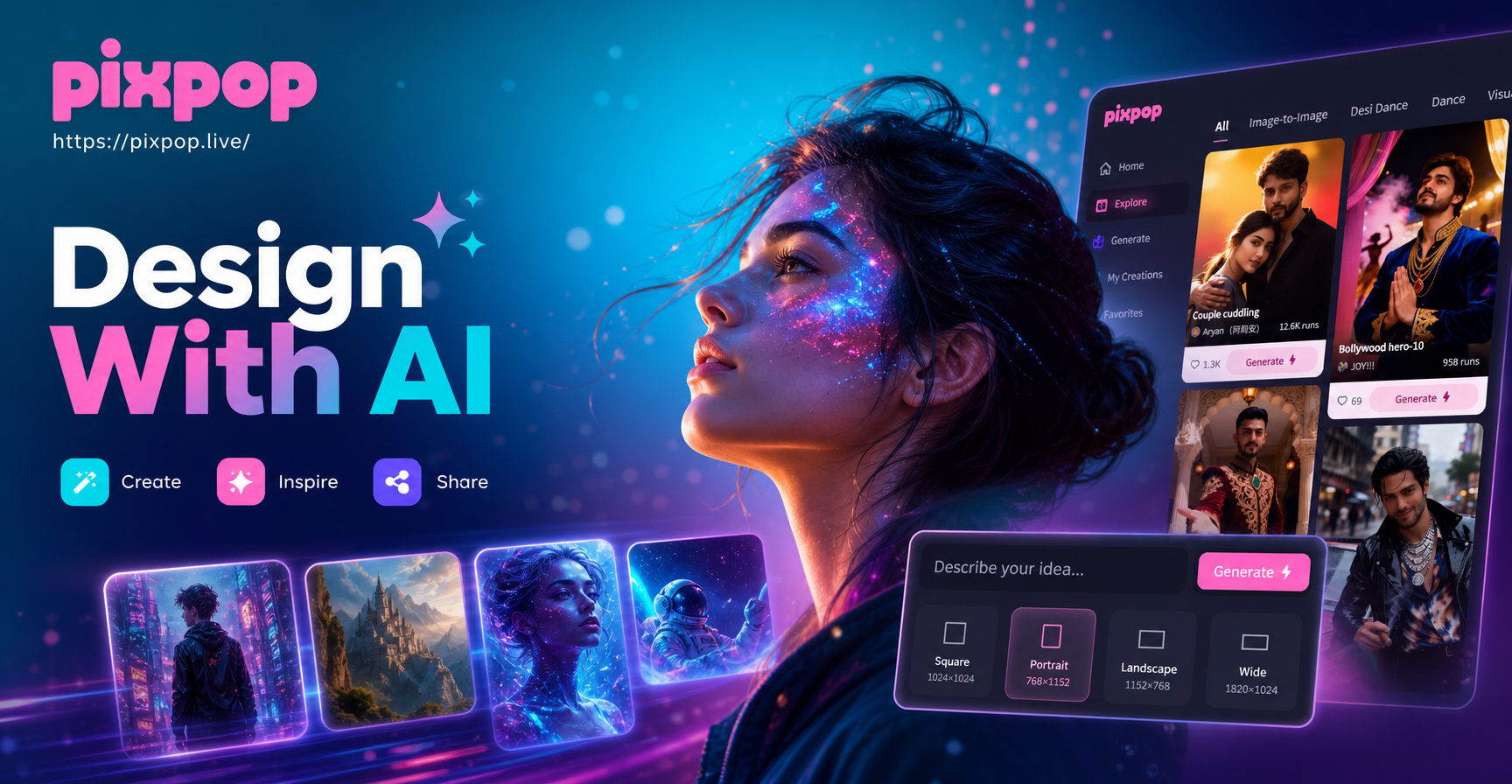
Advanced AI apps like PixPop combine these capabilities in a single mobile app. You can enter a text prompt, choose from a large library of style filters, and generate high resolution posters directly on your phone. The app also supports image to image, so you can turn a simple photo into a poster background or add AI generated elements to an existing design.
Step by Step: Designing a Poster with AI
Step 1: Choose the Right AI Tool
For poster design, you need a tool that offers high quality image generation, a wide range of style templates, and preferably mobile access for convenience. PixPop is one option that works as a mobile app on Google Play. It includes text to image and image to image capabilities, plus over a million style filters ranging from realistic photography to anime, 3D clay, and cinematic quality. Because it is mobile only, you can design posters on the go.
Step 2: Define Your Poster Goal and Audience
Before writing a prompt, be clear about what the poster should achieve. Ask yourself: What is the event or message? Who is the target audience? Where will the poster be displayed (social media, print, billboard)? The answers will guide your choice of colors, typography, imagery, and overall tone. For example, a poster for a children's art camp will use bright playful colors and simple shapes, while a corporate conference poster will need a clean, professional layout with muted colors.
Step 3: Write a Clear, Detailed Prompt
The quality of your AI poster depends heavily on your text prompt. Instead of saying "a poster for a concert," write something specific like: "A vibrant music festival poster with a retro 1970s style, bold orange and purple gradient background, silhouettes of people dancing, large headline space at the top, and a ticket stub graphic at the bottom." Include details about the subject, style, colors, composition, and any text placeholders. The more specific you are, the better the AI will match your vision.
If you are using an AI tool that supports style templates, you can choose a template first and then adjust the prompt to fit that aesthetic. For example, if you select a "cyberpunk" filter, your prompt should mention neon lights, dark background, and futuristic elements.
Understanding Style Keywords for Poster Prompts
To get consistent results, learn what certain style keywords produce. Here are some popular poster styles and the visual language they invoke:
- Retro travel: Bold flat colors, vintage typography space, sunbursts, and thick borders.
- Minimalist: Plenty of white space, one focal image, simple sans serif fonts, and restrained color palettes.
- Grunge band flyer: Distressed textures, ripped paper edges, dark backgrounds, and high contrast typography.
- High fashion editorial: Clean photography, dramatic lighting, elegant serif fonts, and muted or monochrome colors.
- Watercolor: Soft edges, blended pastel tones, and hand painted textures.
- Cyberpunk: Neon blues and pinks, dark cityscapes, glitch effects, and futuristic elements.
Mention these style names directly in your prompt to guide the AI effectively.
Step 4: Pick a Style or Template
Style templates dramatically speed up poster design. Instead of describing every visual attribute, you select a pre made style that already contains a consistent color palette, texture, and mood. PixPop offers categories like realistic photography, anime, 3D clay, Ghibli style, cyberpunk, watercolor, oil painting, and cinematic quality. For posters, popular choices include retro travel poster, minimalist corporate, grunge band flyer, and high fashion editorial. Browse the available filters and pick one that aligns with your poster's message and audience.
Step 5: Generate and Iterate
After entering your prompt and selecting a style, generate the first version. AI rarely produces a perfect poster on the first try. Instead, expect to iterate. Review the output for issues like cluttered layouts, unreadable text placeholders, or missing elements. Then refine your prompt: add more specific details, remove conflicting instructions, or change the style filter. Generate again. Repeat until you get a poster you are happy with. Many AI tools allow you to generate multiple variations at once, which helps you compare options quickly.
Step 6: Add Text and Branding
Most AI generated posters will include placeholder text or no text at all. That is actually an advantage, because it gives you a clean background to add your own event details, logo, and contact information using a graphics editor like Canva or PixPop's built in editing tools. Overlay your headline, date, location, and call to action in a font that matches the poster's style. If the AI generated image already contains some text, check it carefully. AI often misspells words or creates gibberish, so you may need to cover or edit that area.
Step 7: Export and Share
Once your poster is finalized, export it in high resolution. For social media, a resolution of 1080x1350 or 1080x1080 works well. For print, aim for at least 300 DPI. PixPop allows you to download generated images directly to your phone, ready to post online or send to a print shop. Always check the final output before sharing to ensure colors look correct and text is sharp.
Types of Posters You Can Create with AI
AI poster design works for many different use cases. Here are a few common categories and how to approach each one.
- Event posters: Concerts, festivals, conferences, and fundraisers. Emphasize the date, location, and headline. Use bold colors and dynamic compositions.
- Promotional posters: Product launches, sales, and brand awareness. Highlight the product or service with clean backgrounds and strong focal points.
- Educational posters: School projects, safety campaigns, and informational displays. Keep the design simple and readable, with clear icons and short headlines.
- Social media posters: Instagram posts, Facebook ads, and YouTube thumbnails. Design for small screens, with a central subject and minimal text.
- Movie or entertainment posters: Film nights, game releases, and streaming announcements. Use cinematic lighting, dramatic poses, and genre specific color grading.
Adjust your prompt according to the poster type to achieve better results.
Practical AI Poster Prompts You Can Try Today
Here are several specific prompts you can copy and paste into an AI poster generator. Adjust the details to match your event or brand.
- Music festival poster: "A vibrant outdoor music festival poster with a retro 1960s psychedelic style, swirling abstract shapes in orange pink and purple, a silhouette of a crowd with raised hands, large blank space at the top for headline text, and a small ticket stub graphic at the bottom."
- Product launch poster: "A sleek minimalist product launch poster for a new smartphone, dark gradient background, the phone floating in the center with glowing edges, clean sans serif text placeholders for product name and tagline, futuristic blue and silver color scheme."
- School event poster: "A cheerful school science fair poster with a cartoon illustration style, bright primary colors, a smiling robot and a rocket in the background, stars and planets around the border, bold rounded text placeholder for event title."
- Food festival poster: "A warm and appetizing food festival poster with a hand drawn watercolor style, fresh vegetables and spices arranged around the edges, a wooden table in the center with a blank space for text, earthy tones of red orange and green."
- Corporate conference poster: "A professional corporate conference poster with a clean geometric design, navy blue and white color palette, abstract network lines and dots in the background, a central rectangle placeholder for the event name and date."
- Movie night poster: "A dramatic movie night poster in a cinematic film noir style, black and white with a red accent, a vintage film projector silhouette, dramatic shadows, and a large blank area at the bottom for movie title and showtime."
These prompts are starting points. Change the style keywords, colors, and subject details to match your specific poster needs.
Common Mistakes to Avoid When Designing Posters with AI
Even with powerful AI tools, poor results often come from avoidable mistakes. Here are the most frequent pitfalls and how to fix them.
- Vague prompts: Saying "a nice poster" gives the AI too little information. Always include subject, style, colors, and composition.
- Ignoring text legibility: AI generated text is often unreadable. Plan to add your own text separately and leave space for it in the prompt.
- Wrong aspect ratio: A poster that will be printed as 18x24 inches needs a different aspect ratio than an Instagram story. Specify the orientation and dimensions in your prompt when possible, or crop afterward.
- Overcrowded design: Trying to include too many elements makes the poster look messy. Keep the prompt focused on one main subject and one clear focal point.
- Not iterating enough: Many people stop after the first generation. AI poster design is a process; generate multiple versions and combine the best parts.
Conclusion: Start Designing Posters with AI Today
AI has made poster design accessible to everyone. By following the steps above and using a capable tool like PixPop, you can create eye catching posters for any purpose in minutes. The key is to write clear prompts, choose the right style, and iterate until you are satisfied. Download the PixPop app from Google Play, try a few prompt examples, and watch your poster ideas come to life.