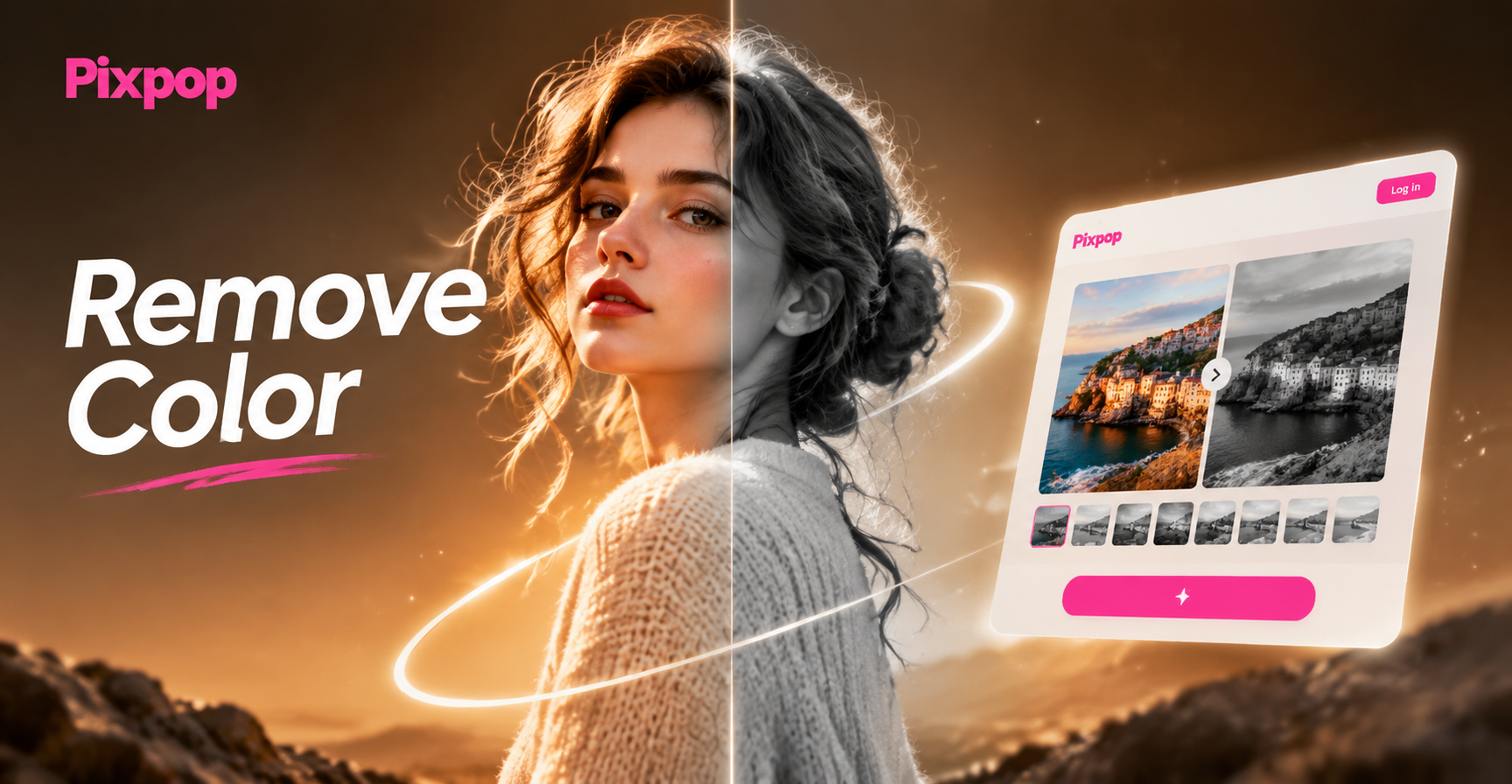
Removing color from an image means converting a full color photo into grayscale, black and white, or a desaturated version. This is one of the most requested photo edits because it can hide distracting colors, create a timeless look, and make portraits feel more formal. You do not need a desktop editor or a background in photography. With the Pixpop mobile app, you can upload a photo, choose a black and white style, and download a clean result in a few seconds.
What Does Remove Color From Image Mean?
In photo editing, removing color is usually called desaturation. A fully desaturated image keeps its brightness and contrast but loses its hue information. The result is made only of shades from black to white. Many people use the terms black and white, grayscale, and monochrome to describe this effect. They are closely related, but not always identical. Black and white photography often includes deep blacks, bright whites, and strong midtone contrast. Grayscale is a more neutral conversion that preserves the original luminance values. Monochrome usually means a single color range, which can be neutral black and white or tinted with one hue such as sepia or cool blue. When you search for how to remove color from an image, you usually want a clean neutral result that looks like a classic black and white photo.
Color removal is not the same as deleting an object from an image. It changes the entire color profile while keeping the subject, lighting, and composition intact. A red jacket becomes a medium gray jacket. A blue sky becomes a light gray tone. Skin tones become soft gray values. The goal is to preserve detail and texture so the image still feels rich even without color.
Why Remove Color From an Image?
There are several practical reasons to remove color from a photo. First, black and white editing removes color distractions. A busy background with bright signs or clashing outfits becomes calmer when everything turns to gray. The viewer can focus on faces, shapes, and expressions instead of competing colors.
Second, black and white images often feel more timeless. Wedding photographers, portrait artists, and documentary creators use this look because it avoids dating the photo through color trends. A black and white portrait can look good for decades.
Third, removing color can improve an image with poor color balance. If a photo has an orange tint from indoor lighting or a green cast from fluorescent light, converting it to black and white removes the problem instantly. You no longer need to correct the white balance.
Fourth, black and white editing emphasizes texture, light, and shadow. Wrinkles in fabric, rough stone, wet streets, and facial contours can become more visible. This is why street photographers and fine art photographers often prefer monochrome images.
How to Remove Color From an Image Using Pixpop
Pixpop is a mobile AI design app available on Google Play. It includes image to image tools and a large collection of style templates. You can use it to remove color from an image without manually adjusting saturation sliders.
Step 1: Download Pixpop
Install Pixpop from Google Play on your Android device. Open the app and select the image editing or image to image option from the home screen.
Step 2: Upload Your Photo
Choose a photo from your gallery. You can use a portrait, selfie, product shot, travel photo, or any image where you want to remove color. Make sure the photo is sharp and well lit if possible. AI works best when the original image has clear edges and visible contrast.
Step 3: Choose a Black and White Style
Look for grayscale, black and white, monochrome, or desaturated style templates in the Pixpop filter library. These styles are designed to remove color while keeping texture and depth. You can also type a short instruction in the image to image prompt box, such as convert this photo to high contrast black and white or remove all color and keep the background and subject exactly the same.
Step 4: Adjust the Result
After the first generation, review the output. If the image looks too flat, try another black and white style or adjust the prompt to request more contrast. Pixpop may give you several variations. Pick the version that keeps important details clear and does not wash out the subject.
Step 5: Save and Export
Download the final black and white image to your phone. You can share it directly to social media, use it in a design, or store it for later. Because the result is generated in the app, there is no need to transfer files to a desktop editor.
Remove Color From Specific Image Types
Portraits
When you remove color from a portrait, pay attention to skin texture and facial shadows. A good black and white portrait keeps the eyes bright and the skin smooth without losing natural detail. Avoid making the face too dark or too pale. Choose a style that preserves midtone separation so the nose, cheeks, and jaw still have shape.
Product Photos
Product shots can look more premium in black and white. This works well for fashion accessories, watches, skincare products, and architectural objects. However, some products rely on color to communicate identity, such as food items or paint samples. In those cases, removing color may confuse the viewer. Use black and white when the product shape and texture matter more than its color.
Landscapes
Landscape photos lose the blue sky and green grass, but they gain dramatic light. Clouds, mountains, water reflections, and long shadows often become stronger in monochrome. If the original sky is overexposed, the black and white version may look empty. Pick a style that deepens the sky and increases contrast between land and sky.
Old Photos
Removing color can be useful when an old photo has faded or shifted colors. Many vintage photos develop a yellow or magenta cast over time. Converting them to black and white is a simple way to hide that damage. The result can look more stable and easier to print or share.
How to Get Clean Grayscale Results
Removing color is simple, but the first result is not always the best result. Use these tips to improve your black and white images.
Start With Good Contrast
Color photos can look acceptable when the contrast is low because different hues separate the subject from the background. Once you remove color, those hue differences disappear. If the contrast is too low, the image becomes muddy. Look for a black and white style that keeps deep blacks and clean whites.
Protect the Highlights
Bright areas such as skies, windows, and light skin can lose detail when converted to black and white. If the output looks too white, try a different template or request a softer black and white conversion in the prompt. Good highlights should remain light but not completely blank.
Watch the Shadows
Dark areas can become pure black quickly. This may look dramatic, but it can also hide important details such as hair texture or dark clothing. If the result is too dark, ask for a balanced grayscale conversion with visible shadow detail.
Avoid Over Processing
AI tools can sometimes sharpen edges too much or add unnatural texture. A natural black and white photo should still look like a photo. If the result feels harsh, choose a neutral grayscale style instead of a heavily filtered cinematic style.
Common Questions About Removing Color From an Image
Is removing color the same as making an image black and white?
They are very similar. Removing all color produces a grayscale image. Black and white often refers to the same result, but it can also include additional contrast and tonal adjustments to look more like classic film photography.
Can I remove color from only part of an image?
Yes, some editing tools support selective color removal, sometimes called color splash. This keeps one object in color while the rest becomes black and white. The basic remove color approach affects the entire image. If you want a selective look, check whether your editing app has a mask or selective color tool.
Does removing color reduce image quality?
Usually not. The image keeps its resolution and detail. However, if the black and white conversion crushes the shadows or blows out the highlights, detail can be lost in those areas. A good conversion preserves as much of the original tone range as possible.
Can I remove color from a photo without an app?
You can use desktop software or online editors, but the process is often slower. A mobile app like Pixpop makes the task faster because the style templates handle the conversion for you. You simply upload and choose a grayscale look.
Why does my black and white photo look flat?
Flat results usually happen when the original image has low contrast or when the conversion removes too much tone separation. Try a higher contrast black and white style, improve the lighting of the original photo, or add a slight texture enhancement after conversion.
Remove Color From Image: Final Tips
The easiest way to remove color from an image is to use a purpose built mobile tool with AI styles. Start with a clean original photo, choose a grayscale or black and white template, and compare a few variations before saving. If the result looks too soft, request more contrast. If it looks too harsh, choose a neutral grayscale option. With the right approach, you can turn any color photo into a polished black and white image in under a minute.