What Are Indian Army AI Photo Editing Prompts?
Indian Army AI photo editing prompts are detailed text instructions that tell an AI image tool how to create or edit a photo with an Indian Army theme. These prompts are not random military phrases. They include exact uniform details, facial expressions, background elements, lighting, and camera style. A strong prompt can turn an ordinary portrait into a realistic Indian Army officer photo or help you generate a new image of a soldier standing at a border post. The key is to give the AI enough visual information so it does not create a generic soldier from another country or blur important badges.
In this guide, you will find ready-to-use Indian Army AI photo editing prompts for both text to image and image to image workflows. You can copy these prompts into pixpop on your phone, adjust a few words for your own face and background, and generate a result that looks intentional and respectful.
Key Visual Details for Indian Army AI Prompts
Before using a prompt, it helps to understand which details make an Indian Army edit look authentic. When you include these details, the AI has a better chance of producing a realistic result.
- Olive green combat uniform or formal ceremonial dress.
- Black beret with regimental badge, maroon beret for parachute regiments, or peaked cap.
- Ashoka emblem, shoulder titles, rank stars, and service ribbons.
- Indian tricolor flag in the background or on the shoulder patch.
- Terrain such as high altitude mountains, desert, dense forest, or parade ground.
- Equipment like an INSAS rifle, a backpack, binoculars, or a radio set.
- Mood and posture such as alert, proud, disciplined, or saluting.
Text to Image Indian Army AI Photo Editing Prompts
These prompts create a new image from text only. Use them in pixpop by selecting a realistic or cinematic style filter and pasting the prompt. You can replace the subject description with your own gender, age, or setting.
1. Border Post Portrait at Dawn
Hyper realistic portrait of a young Indian Army soldier in olive green combat uniform and black beret, standing near a border fence at dawn, Indian tricolor flag softly waving in the background, mist over distant mountains, sharp eyes, proud posture, cinematic lighting, 8k detail.
2. Parade Ground Ceremony
Wide shot of an Indian Army officer in formal ceremonial dress, peaked cap with Ashoka emblem, white gloves, marching on a parade ground, red sandstone building in soft background, morning light, crisp focus, Indian flag on a tall pole, patriotic atmosphere.
3. High Altitude Soldier in Snow
Portrait of a soldier in Indian Army snow camouflage uniform, heavy grey and white winter jacket, black gloves, holding binoculars, standing on a snowy ridge in Ladakh, blue sky, bright sunlight, realistic skin texture, detailed fabric, 8k.
4. Female Indian Army Officer
Professional portrait of a confident female Indian Army officer in olive green uniform, black beret with badge, hair tied back, soft studio light, plain khaki background, subtle flag placement on the shoulder, realistic eyes, natural skin tone, high resolution.
5. Tank Crew at Sunset
Indian Army soldier in combat overalls and black helmet standing next to an Arjun main battle tank, desert terrain, orange sunset sky, dust in the air, cinematic composition, sharp details on the tank tracks, respectful and strong expression.
6. Helicopter Rescue Scene
Action scene of an Indian Army soldier in olive green uniform and tactical vest standing near a Dhruv helicopter on a mountain helipad, rotor blur, dramatic clouds, cool daylight, photojournalistic style, detailed equipment, realistic lighting.
7. Vintage Style Sepia Portrait
Black and white sepia portrait of an Indian Army soldier from a historical regiment, formal uniform with medals, turban or beret depending on regiment, soft studio backdrop, film grain, dignified expression, museum quality restoration look.
8. Waving Flag Silhouette
Silhouette of an Indian Army soldier saluting the Indian tricolor flag at sunrise, golden sky, mountains in background, dramatic rim light, no visible face, strong emotional composition, high contrast, cinematic wide shot.
Image to Image Indian Army AI Photo Editing Prompts
Image to image prompts work on a photo you already have. In pixpop, upload your portrait, choose a filter, and enter one of these prompts. The AI will preserve your face and body while changing the uniform, background, or lighting. Use these prompts as a starting point and add your own details.
1. Transform My Photo Into an Indian Army Officer
Transform this portrait into an Indian Army officer wearing an olive green combat uniform and black beret with regimental badge. Keep my facial features, skin tone, and hair texture unchanged. Add a soft Indian flag in the background and natural daylight.
2. Add a Parade Ground Background
Edit this photo to place me in an Indian Army parade ground. Dress me in formal ceremonial uniform with a peaked cap and white gloves. Keep my face and body proportions identical. Use morning light and a clean, respectful atmosphere.
3. High Altitude Border Edit
Change this photo into a high altitude Indian Army portrait. Put me in snow camouflage winter gear, add a mountain ridge with faint snow, and make the lighting cold and crisp. Preserve my facial identity, age, and expression.
4. Cinematic War Memorial Portrait
Apply a cinematic Indian Army edit to this image. Keep my face clear and recognizable. Add olive green uniform, a tricolor armband, soft dust in the air, and a war memorial in the blurred background. Use dramatic golden hour lighting.
5. Respectful Rank and Ribbon Detail
Enhance this portrait into a formal Indian Army photo. Add a clean olive green dress uniform with service ribbons, rank stars on the shoulders, and a peaked cap. Keep my facial structure the same. Make the insignia sharp and readable.
How to Adapt These Indian Army AI Prompts
The prompts above are deliberately specific, but you should change them to fit your own photo or creative goal. If you are editing a real photo of yourself, keep the face, hair, and body details unchanged. Add your age, gender, and skin tone if the AI needs help matching you. For example, replace 'young Indian Army soldier' with '38 year old Indian man with short black hair and a light beard' to guide the face generation.
You can also change the background. Instead of a border post, use a university campus, a desert training ground, or a city street during Republic Day. Change the time of day from dawn to midday or golden hour. Add weather such as rain, snow, or dust to change the mood. The more specific you are, the less the AI will fill in with generic details.
Common Weak Results and How to Fix Them
Even good prompts can produce a few common problems. Here is how to fix them quickly.
- Blurry badges or insignia. Add the phrase 'sharp cap badge, readable shoulder title, crisp insignia' to your prompt. Avoid prompts that cover the chest with arms or shadows if you want ribbons visible.
- Wrong uniform color. Add 'olive green Indian Army combat uniform' instead of just 'army uniform'. Include the country name to avoid confusion with other armies.
- Face mismatch in image to image. Start with a sharp, well lit front facing photo. Add 'preserve my exact facial features, skin texture, and eye shape' to the prompt. If the result still looks different, reduce the style intensity in pixpop before regenerating.
- Extra fingers or distorted hands. Use prompts that do not emphasize hands, or add 'hands resting naturally at sides, perfect anatomy' if hands are important. Regenerate and pick the cleanest result.
- Over saturated or fake look. Add 'natural colors, realistic skin texture, muted tones, photojournalism style' to remove the overdone AI look.
Using pixpop for Indian Army AI Photo Edits
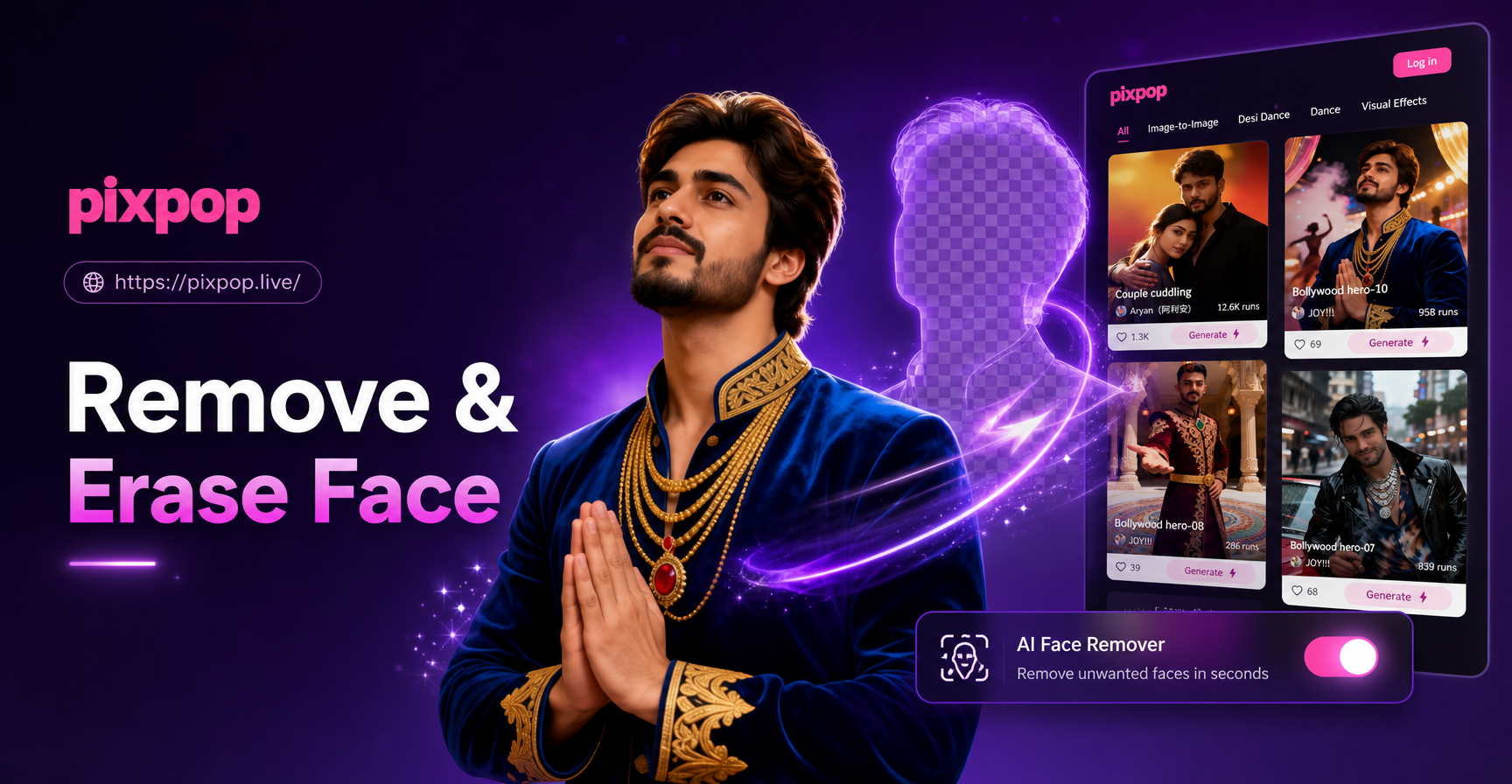
pixpop is a mobile app that combines text to image and image to image editing with a large library of style filters. You do not need complex prompt engineering. Download the app, upload a photo or start with a blank canvas, choose a realistic or cinematic filter, and paste one of the Indian Army AI photo editing prompts from this guide. The app generates the result on your phone, so you can refine the same prompt several times without switching devices.
For a real photo edit, use the image to image prompts. For a fresh concept image, use the text to image prompts. Always check the uniform details and background before sharing the result, especially if you want the edit to look respectful and authentic.
Final Tips for Better Indian Army Edits
Use a clear, front facing photo with even lighting for the best image to image results. Keep the prompt focused on one or two changes per generation. If you try to change the uniform, background, lighting, and face at the same time, the AI may produce a confusing result. Instead, start with the uniform edit, then run a second pass for the background or lighting.
And remember that Indian Army AI photo editing prompts work best when they respect the service and the symbols. Avoid unrealistic wounds, exaggerated action, or anything that could be seen as disrespectful. Keep the edits clean, proud, and grounded in real visual details. With the right prompt and a little refinement, you can create a powerful portrait that looks like it belongs in a recruitment poster or a personal tribute.