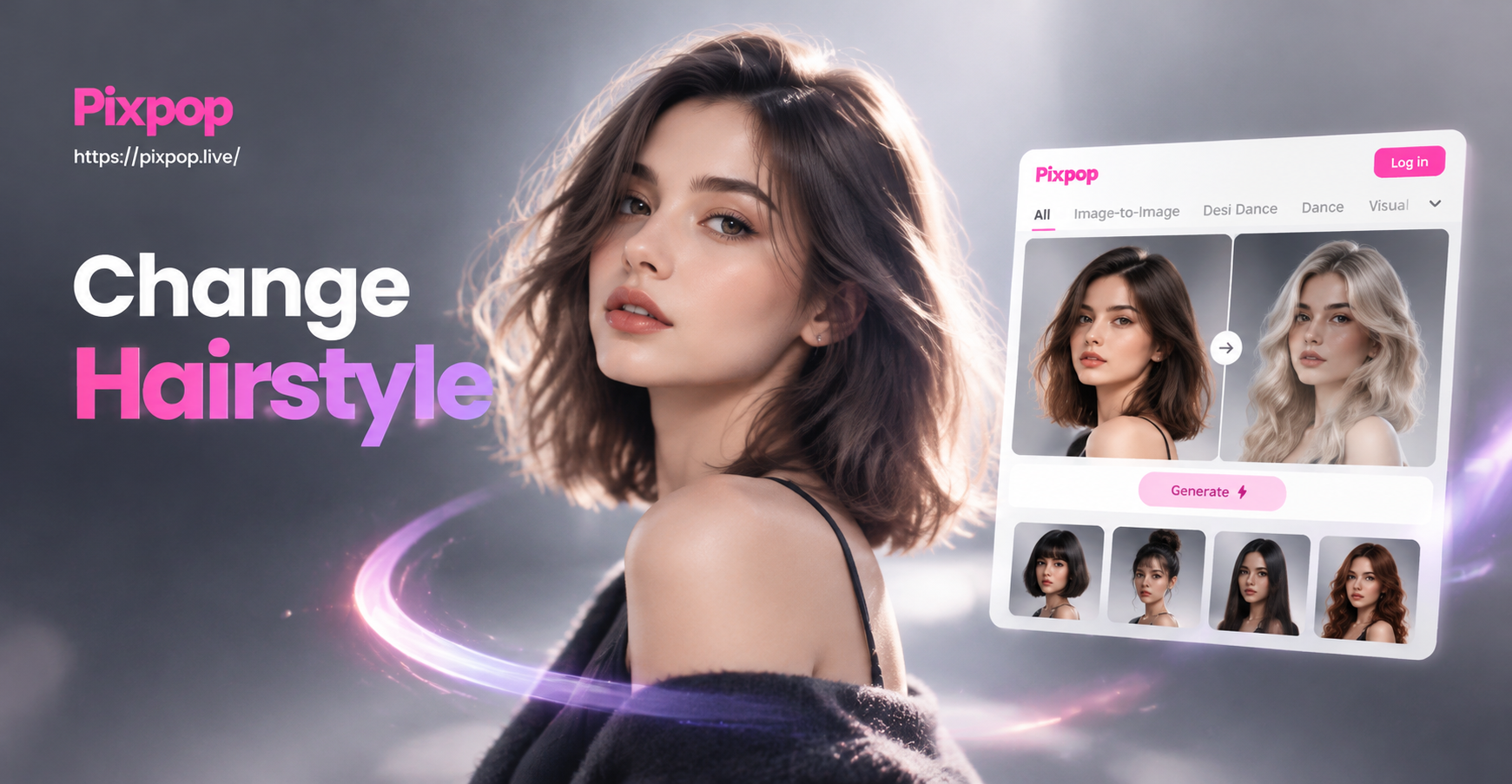
What to Know Before You Change a Hairstyle with AI
AI photo editors can produce surprisingly realistic hairstyle changes, but the results depend on the quality of your source photo and the detail in your description. Before you start, choose a clear picture where your face is well lit and your current hair is visible. A front facing photo or a three quarter angle works best. Avoid heavy shadows, hats, or hair that covers most of your forehead and ears, because the AI needs to understand your facial structure to place the new hairstyle naturally.
Most AI hairstyle tools use a technique called image to image generation. This means the tool takes your original photo as a reference and creates a new version that follows your prompt while trying to keep the same identity. When done well, the result looks like you visited a stylist, not like a different person.
How AI Hairstyle Change Works Under the Hood
Image to image generation is different from a simple overlay or sticker. The AI analyzes the shapes, lighting, and colors in your original photo, then reconstructs the image with the requested changes. For a hairstyle change, it attempts to keep your face, head shape, and skin tone consistent while generating new hair around them. That is why a clear, unobstructed source photo matters so much. The more visual information the AI has, the better it can blend the new hairstyle into the scene without unnatural edges or color mismatch.
Some tools also let you control the strength of the transformation. A low strength may only slightly adjust your current hair, while a high strength can completely replace it. In pixpop, the image to image mode is designed to preserve the main subject, so you can push the style further without losing your identity.
Step by Step: How to Change Hairstyle in Photo with AI
Step 1: Choose a Reliable AI Photo Editor
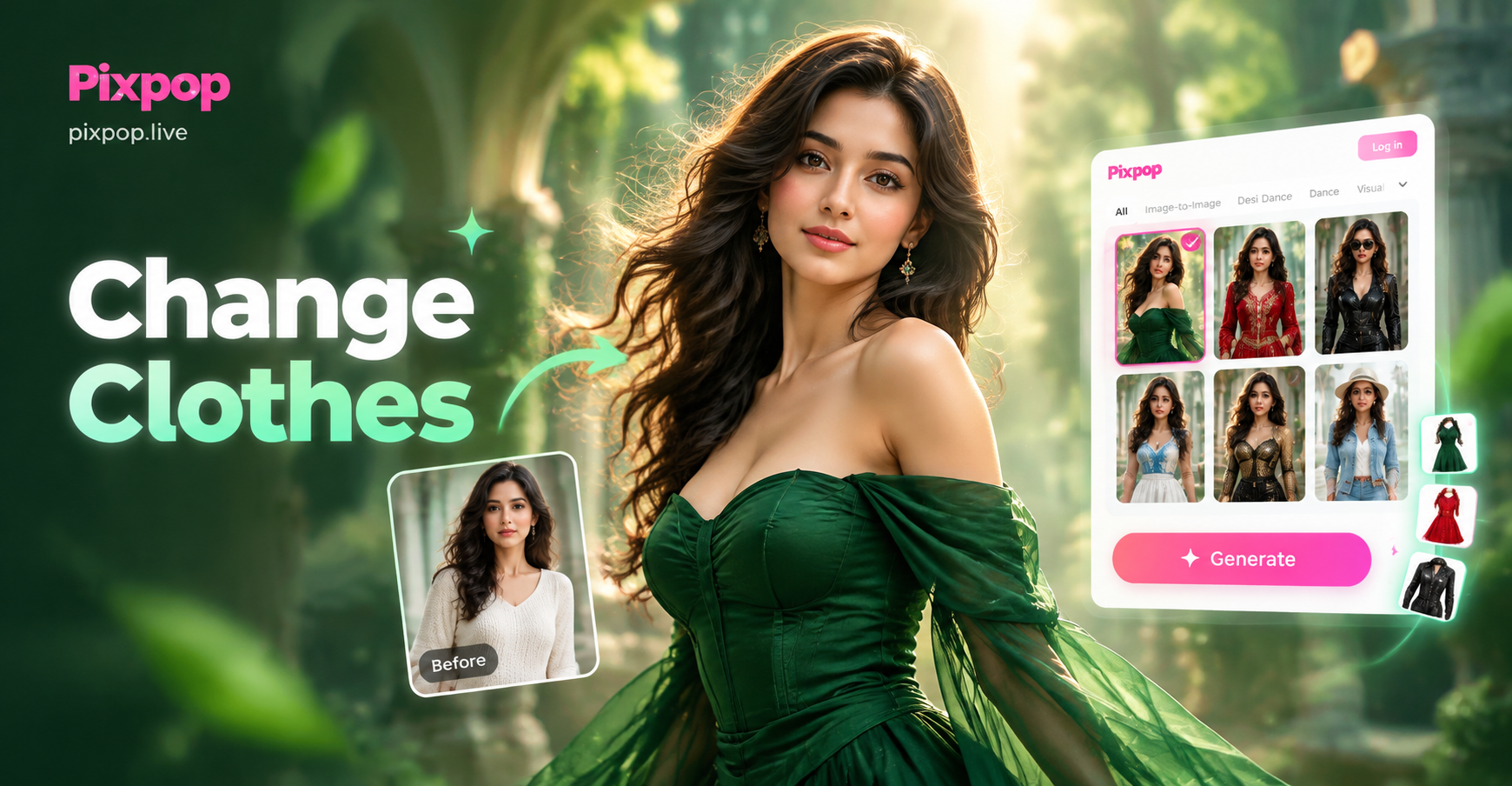
You need an app that supports photo based transformation, not just a basic filter. pixpop is a mobile AI design tool that includes image to image editing. Its strength is preserving the main subject in your photo while changing the style around it, which is exactly what you need for a new hairstyle. You can download pixpop on Google Play and work entirely from your phone.
Step 2: Upload a Clear Photo
Open the app and select the image to image or photo editing mode. Choose a photo that meets these conditions: good lighting, no blur, face clearly visible, and minimal obstructions. If your hair is tied back in the original photo, it can be harder for the AI to infer volume, so choose a photo where your hair is down and visible if possible.
Step 3: Describe the New Hairstyle You Want
This is the most important step. Write a specific prompt that includes length, texture, color, parting, and any details like bangs or layers. For example, you might write: short curly bob with soft waves, natural dark brown color, side part, hair tucked behind ears. The more precise your description, the closer the AI will get to your ideal look.
Step 4: Apply Image to Image Editing or Style Transfer
In pixpop, after uploading your photo, choose the image to image feature. You can either paste your custom prompt or select one of the available style templates. If you use a style template, treat it as a starting point and still add your own hair description to guide the result. Keep the original photo as the reference so your face remains the same.
Step 5: Generate Several Variations
Do not settle for the first output. AI generation is unpredictable, so run the process three to five times. Compare each result for a natural hairline, even color, realistic shadows, and facial consistency. Pick the image that looks most like you with the new hairstyle.
Step 6: Refine and Download
If the first batch is close but not perfect, adjust one detail at a time. Change the length, then the texture, then the color. Small refinements often produce a dramatically better final image. When you are satisfied, save the photo to your phone and share it with friends or a stylist before committing to the cut.
AI Prompts to Try for Hairstyle Changes
Use these ready made prompts as starting points. Replace the color, length, or texture with your own preferences.
- Medium length layered cut with beach waves, warm honey blonde highlights, center part
- Sleek low bun with a deep side part, jet black hair, glossy finish
- Short pixie cut with textured top, ash brown color, side swept bangs
- Long straight hair with curtain bangs, soft copper tone, face framing layers
- Curly afro with defined ringlets, dark brown, voluminous shape
- Messy high ponytail with loose strands, natural brunette, casual look
You can combine these with an instruction like keep the same face or natural hairline in tools that support that. In pixpop, the image to image mode already helps preserve identity, so you can focus on describing the hair itself.
Tips for Realistic AI Hairstyle Results
Use a high resolution photo. A sharp original gives the AI more detail to work with and prevents blurry hair edges.
Keep your face unobstructed. The more the AI can see of your forehead, ears, and jawline, the better it can place the new style.
Change one feature at a time. If you ask for a new hair color, cut, and face shape all in the same prompt, the AI may drift away from your identity.
Add a preservation cue. Phrases like keep the same face or preserve facial features can help, especially in tools that support negative prompts.
For pixpop, combine a style template with a custom hair description. The template sets the overall mood and quality, while the prompt controls the specific hairstyle.
Common Problems and How to Fix Them
Hair looks blurry: Use a higher resolution source photo and avoid cropping too tightly before uploading.
Face changed too much: Re-run the generation with a stronger instruction to keep the same face, or choose a template that focuses on hair rather than full style transfer.
Color looks unnatural: Be specific about natural shades like ash brown or warm honey blonde, and avoid neon colors unless that is your goal.
Hairline looks fake: Add the phrase natural hairline to your prompt, and choose a photo with a visible forehead and hairline.
What to Do After You Generate Your New Hairstyle
Once you have a result you like, save it to your phone. You can use it as a preview before a salon visit, share it with friends for feedback, or update your profile photo. Some people also generate several versions and ask a stylist which one is most flattering for their face shape. Because the image looks realistic, it can serve as a useful consultation tool.
Why Use a Mobile AI App Like pixpop for Hairstyle Changes
pixpop keeps the entire workflow on your phone. You do not need a desktop computer or design experience. Upload a photo, type a hair description, generate, and save. Because the app includes a large style library and image to image editing, you can experiment with many looks in minutes. This makes it easier to preview a style before you visit a salon or change your profile photos.
Conclusion
Changing your hairstyle in a photo with AI is simple when you follow the right steps. Start with a clear photo, describe the new hair in detail, use an image to image editing tool like pixpop, and generate several variations. With a little refinement, you can see exactly how a new cut or color would look on you before making any real world change.